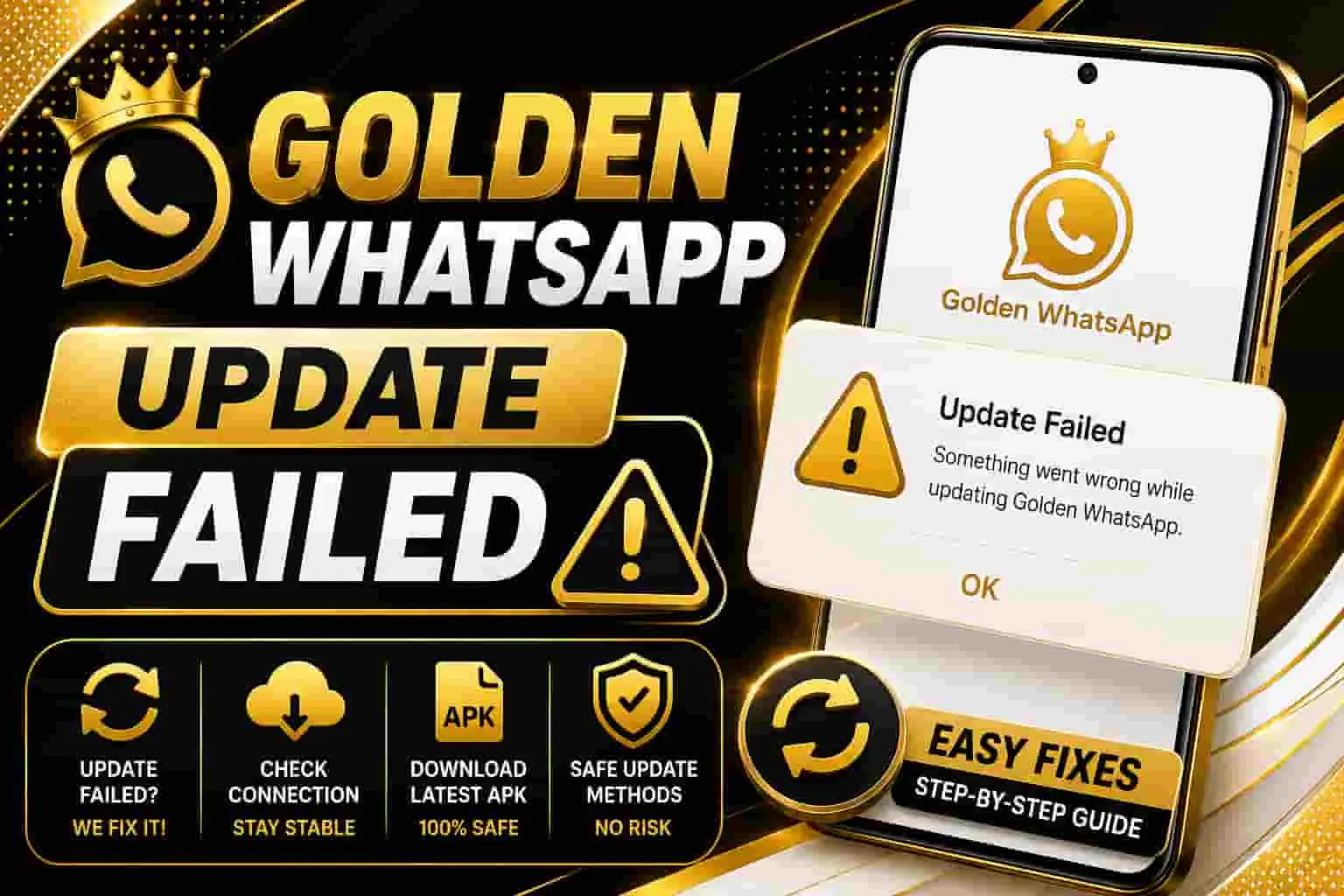
Golden WhatsApp Update Failed
Complete guide: why the update fails, how to fix it, and how to stay safe while using Golden WhatsApp
Table of Contents
1. What is Golden WhatsApp?
Golden WhatsApp (also known as a “mod” version of WhatsApp) is an unofficial app that offers extra customization features — themes, hidden status view, extra privacy controls — that the original WhatsApp does not provide. Because it isn’t distributed through the Play Store or App Store, updates work differently, and this is exactly where most “update failed” problems begin.
If you’re new to modded WhatsApp apps altogether, our Home page has a full overview of Golden WhatsApp, its download links, and everything you need to get started safely.
2. Key Features of Golden WhatsApp
Before jumping into the update problem, it helps to understand why so many users prefer this app in the first place:
- Anti-Ban Protection: Built with extra layers meant to reduce the chance of account bans compared to older mods.
- Custom Themes: Thousands of themes and icon packs to personalize the interface.
- Hidden Status View: Watch statuses without the sender knowing.
- Extended Privacy Controls: Hide “online” status, blue ticks, and typing indicators individually.
- Larger File Sharing: Send bigger videos and documents than the official app allows.
3. Why the Update Fails
There are a few common reasons users see the update process stop working:
- The download link or server hosting the update is temporarily down.
- Your device blocks installation from unknown sources.
- An older version conflicts with the new APK file.
- Not enough free storage space on the device.
- A corrupted or incomplete APK download.
- You downloaded the update from a third-party site instead of the official source.
4. Common Error Messages
| Error Message | Likely Cause |
|---|---|
| “App not installed” | Signature mismatch with older version |
| “Update failed – try again” | Weak or interrupted internet connection |
| “Parse error” | Incomplete or corrupted APK download |
| “Installation blocked” | Unknown sources permission disabled |
| App crashes after update | Cache conflict from previous version |
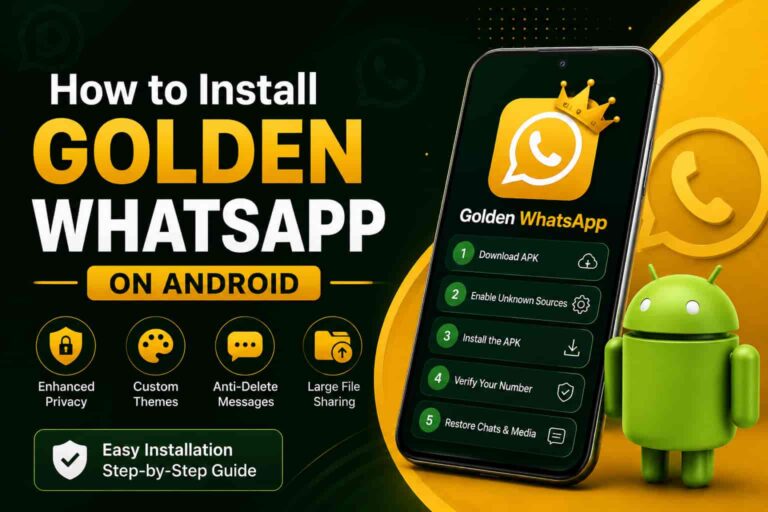
5. Step-by-Step Fix
Uninstall the Old Version
Before installing the update, remove the previous version completely to avoid a signature conflict.
Clear Cache & Free Up Storage
Go to Settings → Storage and make sure you have at least 200–300 MB of free space before downloading again.
Enable Unknown Sources
Go to Settings → Security (or Apps) and allow installation from unknown sources for your browser or file manager.
Download the APK Again
Use a stable Wi-Fi connection and download the update file fresh, instead of resuming an old, interrupted download.
Restore Your Chat Backup
After installation, open the app and restore your chats from the local backup so nothing is lost.
6. How to Manually Download the Latest Version
If the in-app update keeps failing, the safest workaround is downloading the APK manually instead of relying on the automatic updater:
- Visit our Old Versions page to pick a stable release if the newest build is giving you trouble.
- If you’re on a tablet or a different device, check the For Other Devices section for a compatible build.
- Always compare the file size and version number with what’s listed on the download page before installing.
This manual method avoids the background updater entirely, which is where most failures happen.
7. Safety & Legality
- Always back up your chats before installing any update.
- Avoid downloading APKs from random ads or pop-ups.
- Keep your device’s antivirus/scan feature turned on.
- Remember that using modded apps may go against WhatsApp’s terms of service.
For the full breakdown of terms, permissions, and disclaimers around using Golden WhatsApp, read our Legal Pages.
8. Golden WhatsApp vs GB WhatsApp vs Official
Golden WhatsApp is often compared with other mods like GB WhatsApp, as well as the official app, especially when it comes to update stability, ban risk, and feature sets. We’ve put together a full side-by-side breakdown on our Gold WhatsApp Vs. page, which is worth checking before you decide which version to stick with long-term.
Still Facing the Update Issue?
Drop your error message in the comments and let the community help you troubleshoot it faster.
Leave a Comment9. Frequently Asked Questions
Is it safe to use Golden WhatsApp?
Since it’s an unofficial app, it comes with more risk than the original WhatsApp. Always download from a trusted source and keep backups.
Will I lose my chats after updating?
Not if you back up first. Local backups let you restore all your conversations right after installing the new version.
Can I switch back to official WhatsApp?
Yes, you can uninstall the mod version and install the official WhatsApp app from the Play Store or App Store, then restore your backup.
Why does the app ask me to update every time I open it?
This usually happens when the app detects a newer build on the server but the download or installation hasn’t completed successfully — follow the step-by-step fix above to resolve it.
Where can I find older, more stable versions?
Check the Old Versions page for previous stable builds you can roll back to.
10. Conclusion
Update failures on Golden WhatsApp are almost always caused by storage, permissions, or a corrupted download — not a broken app. Following the steps above resolves the issue for most users in a few minutes.
For more guides like this, browse our Blogs section, or head back to the Home page for the latest download links.