
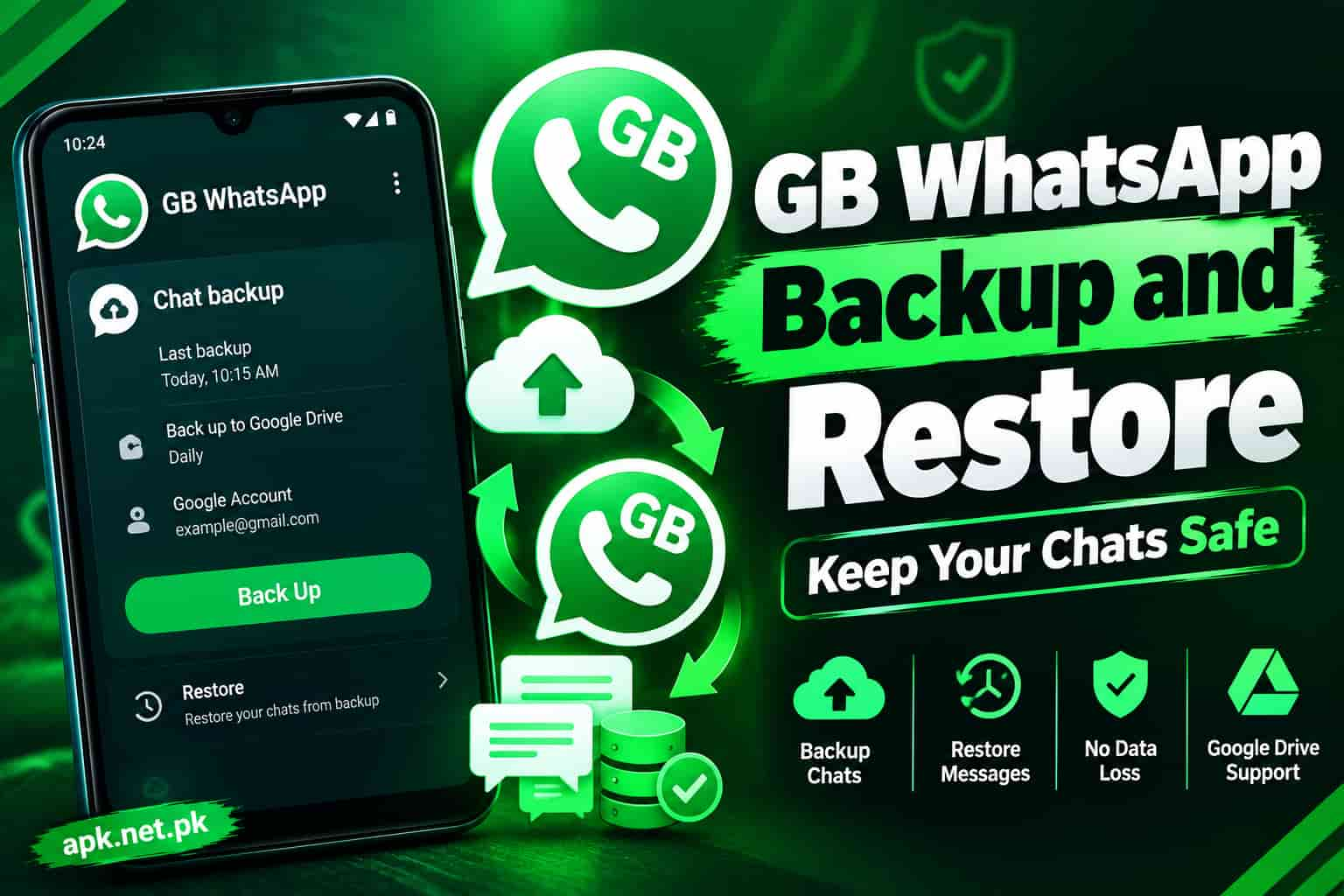
GB WhatsApp Backup and Restore
You reinstall the app, open it, and your chats are gone. That moment hurts, especially when those chats hold work files, family photos, or payment details. A good backup turns that disaster into a two minute fix. This guide shows you how to back up and restore GB WhatsApp the safe way, on the same phone or on a new one.
First, one honest point. GB WhatsApp is an unofficial mod, so it does not follow every rule of the official app. Because of that, many guides online contradict each other. Here, you will get the steps that work, the folders that matter, and the fixes for the errors people hit most. If you still need the app itself, grab it from our GB WhatsApp download page first.
How GB WhatsApp Backup Works
GB WhatsApp saves your chats as an encrypted database file on your phone. It stores that file in a folder named GBWhatsApp. Your photos, videos, and voice notes sit in a separate Media folder inside it.
Official WhatsApp leans on Google Drive. GB WhatsApp leans on local files. That difference changes everything about how you protect your data.
Here is what each part does:
- The database file holds your text messages. Its name ends in .crypt14.
- The Media folder holds your pictures, videos, audio, and documents.
- The phone number ties the backup to your account, so a restore needs the same number.
Official WhatsApp creates a local copy once a day around 2:00 AM and keeps roughly seven days of copies. GB WhatsApp follows a similar pattern in most builds. The exact count can change between versions, so open your own Databases folder and check.
A restore only brings back what a backup contained at that moment. Anything that arrived after the last backup is gone. That is why backup timing matters more than restore skill.
Pick the Right Backup Method
You have five options. Some work well with GB WhatsApp. Others look good on paper but fail in practice.
| Method | Where it lives | Works with GB WhatsApp | Best for |
|---|---|---|---|
| Local backup | GBWhatsApp folder on your phone | Yes, this is the main method | Daily protection and reinstalls |
| Manual copy | Your PC, SD card, or cloud storage | Yes, and the safest | New phones, updates, lost devices |
| Google Drive | Your Google account | Unreliable, so do not depend on it | Official WhatsApp only |
| Official encrypted backup | Google Drive with a password | No, it belongs to official WhatsApp | Users who switch back to the original app |
| Export chat | A text file you share | Yes | Saving one important conversation |
Some GB WhatsApp builds show a Google Drive option in the menu. Do not trust it. Google ties Drive backups to the official app, and many users report that the mod never uploads anything. Check your Drive storage yourself if you want proof.
How to Back Up GB WhatsApp Chats
Do this once now, and then do it before every risky move. It takes under five minutes for most phones.
Create a manual backup
- Open GB WhatsApp and tap the three dot menu at the top right.
- Tap Settings, then Chats, then Chat backup. Some builds put this under GB Settings, then Backup and Restore.
- Tap Back up and wait. Keep the screen on and the phone plugged in if you have many chats.
- Check the screen for the last backup time. It should show today.
Copy the backup to a safe place
This step protects you when the phone dies, resets, or disappears. A backup on the same phone does not survive any of those.
- Open your file manager and find the GBWhatsApp folder in Internal storage.
- Long press the folder and copy it. If your file manager can compress it, make a zip file.
- Paste it to your computer by USB, to an SD card, or to a cloud storage app you trust.
- Rename the copy with today’s date so you can find it later.
Copy the whole folder, not only the database file. The Media folder holds your photos and voice notes. A database alone restores text but leaves empty gray thumbnails.
Set a habit that fits your usage
Heavy users who handle business chats should copy the folder weekly. Casual users can copy it monthly. Everyone should copy it before an update, a phone change, or a factory reset.
Where GB WhatsApp Stores Your Backup Files
Many restore failures start here. The app cannot restore a file it cannot find. Newer Android versions also restrict access to some app folders, so the location can differ by phone.
| Item | Common path | What to know |
|---|---|---|
| Chat database | Internal storage / GBWhatsApp / Databases | Holds msgstore.db.crypt14 and dated copies |
| Media files | Internal storage / GBWhatsApp / Media | Holds images, video, audio, and documents |
| Newer Android layout | Android / media / com.gbwhatsapp / GBWhatsApp | Some builds on Android 11 and above use this path |
| SD card copy | SD card / GBWhatsApp | Works as a storage location on some phones |
The official app moved its folder to Android, then media, then com.whatsapp when Android 11 tightened storage rules. Forum users who copied old folders to the wrong place saw no restore prompt at all. Keep the same folder structure you found on the old phone, and the app has a much better chance of seeing it.
Inside the Databases folder, you will see one file called msgstore.db.crypt14. You will also see dated copies, and each carries its backup date in the file name. Those dated copies give you earlier restore points.
How to Restore GB WhatsApp on the Same Phone
Use this after you reinstall the app, clear its data, or lose chats by mistake.
- Confirm the GBWhatsApp folder still exists in your file manager. Uninstalling the app usually leaves it in place.
- Install GB WhatsApp again. Use the same version or a newer one, never an older one.
- Open the app and enter your phone number. Enter the code from the SMS. If the code never arrives, our fix guide for a GB WhatsApp verification code that does not arrive solves it.
- Allow storage or file access when the app asks. Without that permission, the app cannot see your backup.
- Tap Restore on the screen that offers your backup. Wait until the progress bar finishes.
- Tap Next, add your name, and open your chats. Media can continue loading for a few minutes afterward.
The restore offer appears only during setup. If you tap Skip, the app starts fresh and may overwrite your old backup with an empty one at the next scheduled backup. Copy your folder to safety before you try again.
How to Restore GB WhatsApp on a New Phone
A new phone needs one extra move: you must carry the backup across yourself. Google Drive will not do it for you.
- On the old phone, create a fresh backup, as shown above.
- Copy the whole GBWhatsApp folder to your computer, SD card, or cloud storage.
- Insert your SIM card into the new phone, or make sure you can receive the same number’s SMS.
- Paste the folder into the same location on the new phone, without opening GB WhatsApp first.
- Install GB WhatsApp, verify your number, allow storage access, and tap Restore.
Do not log in to the old phone after you start the new setup. Using the same number on two phones at once can log one of them out and confuse the process.
Also, install a version close to the one on your old phone. A big gap between versions can change the database format and block the restore. If you need the right build, our GB WhatsApp update page lists the latest one.
How to Restore an Older Backup or Deleted Messages
Sometimes the newest backup already lost the chats you need. That happens when you delete messages and a new backup runs afterward. The fix is to use an older dated copy.
- Open the Databases folder inside GBWhatsApp.
- Rename the current msgstore.db.crypt14 to something safe, such as msgstore_current.db.crypt14.
- Pick the dated copy from before you lost the chats.
- Rename that copy to msgstore.db.crypt14.
- Uninstall GB WhatsApp, reinstall it, verify your number, and tap Restore.
This works only when an older copy still exists. If your oldest file already lacks the deleted chat, no normal method brings it back. Treat any software that promises to recover everything with care, because many of them ask for payment and cannot beat encryption.
Also, a message that someone deleted for everyone after your last backup will not return from a restore. GB WhatsApp has an anti delete setting in its privacy options that helps you keep future messages.
Move Chats Between GB WhatsApp, Official WhatsApp, and iPhone
From official WhatsApp to GB WhatsApp
- Back up official WhatsApp in its own chat backup screen.
- Copy the WhatsApp folder to a safe place first.
- Uninstall the official app without clearing its data, then install GB WhatsApp.
- Rename the WhatsApp folder to GBWhatsApp, including the Media folder name if it appears.
- Open GB WhatsApp, verify your number, and tap Restore.
From GB WhatsApp back to official WhatsApp
Reverse the steps. Back up in GB WhatsApp, copy the folder, rename GBWhatsApp to WhatsApp, install the official app without opening it, then verify and tap Restore. On newer Android versions, place the renamed folder in the official app’s media location. Results vary by phone, so keep your untouched copy.
Restoring on an iPhone
You cannot restore a GB WhatsApp backup on an iPhone. The mod runs on Android only. Read our guide on GB WhatsApp for iOS for the full picture. If you want your chats on an iPhone, move them to official WhatsApp on Android first. Then use WhatsApp’s own Move to iOS tool.
Back Up Before Updates, Bans, and Resets
Four moments cause most data loss. Back up before each one.
- Updating the app: A bad update can break the database. Create a backup and copy the folder first.
- Switching versions: Moving to a different mod build can change file names. Keep your old copy untouched.
- Factory resetting the phone: A reset wipes internal storage, including your backup. Copy it to a PC first.
- Facing a ban: Accounts that look at risk should get a fresh copy right away. Our GB WhatsApp anti ban guide explains how to lower that risk.
A ban stops you from logging in, but your local files stay on the phone. That means a recent copy on your computer can save your history even when the account is locked.
Fix GB WhatsApp Backup and Restore Problems
Most failures come from a short list of causes. Match your symptom below.
| Problem | Likely cause | Fix |
|---|---|---|
| No restore prompt | Wrong folder or missing storage permission | Move the folder to the exact path, then grant file access |
| Cannot find any backup | File renamed or placed one folder too deep | Put the Databases and Media folders directly inside GBWhatsApp |
| Restore fails halfway | Low storage or a corrupted file | Free at least double the backup size, or try an older dated copy |
| Backup stuck on Preparing | Full storage or a stalled app | Free space, force stop the app, and run the backup again |
| Chats return but media does not | Media folder missing | Copy the Media folder back, then restore again |
| Restore refuses to start | Different phone number or an older app version | Use the original number and install the same or a newer version |
| Backup too small | Backup ran before most chats arrived | Run a fresh backup, then compare the file date and size |
If every fix fails, stop and copy your folder somewhere safe. Repeated reinstall attempts can overwrite the one good backup you still have.
Keep Your Backups Private and Safe
Your backup holds your entire conversation history, so treat it like a password list. Official WhatsApp offers an end to end encrypted backup protected by a password or a 64 digit key, and it warns that normal Google Drive backups lose end to end protection. You can read the details in the official WhatsApp backup guide and in the company’s own post on encrypted backups.
GB WhatsApp does not offer that official protection, so you must supply your own. Follow these habits:
- Store copies on devices and drives that you control.
- Lock cloud storage with a strong password and two step verification.
- Delete old copies from shared computers.
- Download the app only from a source you trust. Read our safety review before you decide.
The mod is unofficial. WhatsApp can ban accounts that use it. A backup does not stop a ban, but it does save your history when one happens.
GB WhatsApp Backup and Restore FAQs
Does GB WhatsApp have a backup and restore feature?
Yes. GB WhatsApp includes a chat backup option in its settings. It creates a local encrypted file on your phone, and it offers to restore that file when you reinstall and verify your number.
Where does GB WhatsApp save backups?
Most builds save backups in the GBWhatsApp folder on internal storage, inside Databases for chats and Media for files. Some builds on newer Android versions use a path under Android, then media, then com.gbwhatsapp.
Can I back up GB WhatsApp to Google Drive?
Do not count on it. Some builds show a Drive option, but many users report that nothing uploads. Copy your GBWhatsApp folder to your computer or cloud storage instead.
How do I restore GB WhatsApp chats after reinstalling?
Keep the GBWhatsApp folder on your phone, install the app again, verify your number, allow storage access, and tap Restore when the prompt appears. Use the same or a newer app version.
How do I restore GB WhatsApp chats on a new phone?
Copy the whole GBWhatsApp folder from the old phone to the new one, place it in the same location, install the app, verify the same number, and tap Restore.
Can I restore deleted GB WhatsApp messages?
Only if an older backup still holds them. Rename an older dated copy to msgstore.db.crypt14, reinstall the app, and restore. Messages that no backup ever captured cannot return.
Can I restore only one chat?
No. A restore brings back every chat in the file. To save a single conversation, use the Export chat option from that chat’s menu.
Why does GB WhatsApp not show the restore button?
The app usually cannot see your backup. Check the folder path, confirm the file names, grant storage permission, and verify the same phone number you used when you created the backup.
Does uninstalling GB WhatsApp delete my backup?
Usually not. The GBWhatsApp folder stays on your storage after you uninstall. Clearing app data or resetting the phone can remove it, so copy the folder first.
Can I move my chats from WhatsApp to GB WhatsApp?
Yes, on Android. Back up official WhatsApp, rename its folder to GBWhatsApp, install the mod, verify your number, and restore. Keep an untouched copy of the original folder.
Can I restore GB WhatsApp chats on an iPhone?
No. GB WhatsApp does not run on iOS, and its backup files do not open there. Move your chats to official WhatsApp on Android first, then use WhatsApp’s Move to iOS tool.
How often should I back up GB WhatsApp?
Let the daily automatic backup run, and copy the folder to a second location every week if your chats matter. Always copy it before an update, a reset, or a phone change.
Final Word on GB WhatsApp Backup and Restore
Backing up GB WhatsApp comes down to three habits. First, create a backup often. Second, copy the whole GBWhatsApp folder to a second place. Third, restore with the same number and a matching app version.
Do those three things and a reinstall becomes a small chore instead of a crisis. Ready to set up the app with a clean start? Get it from the GB WhatsApp download page and run your first backup today.
One Comment