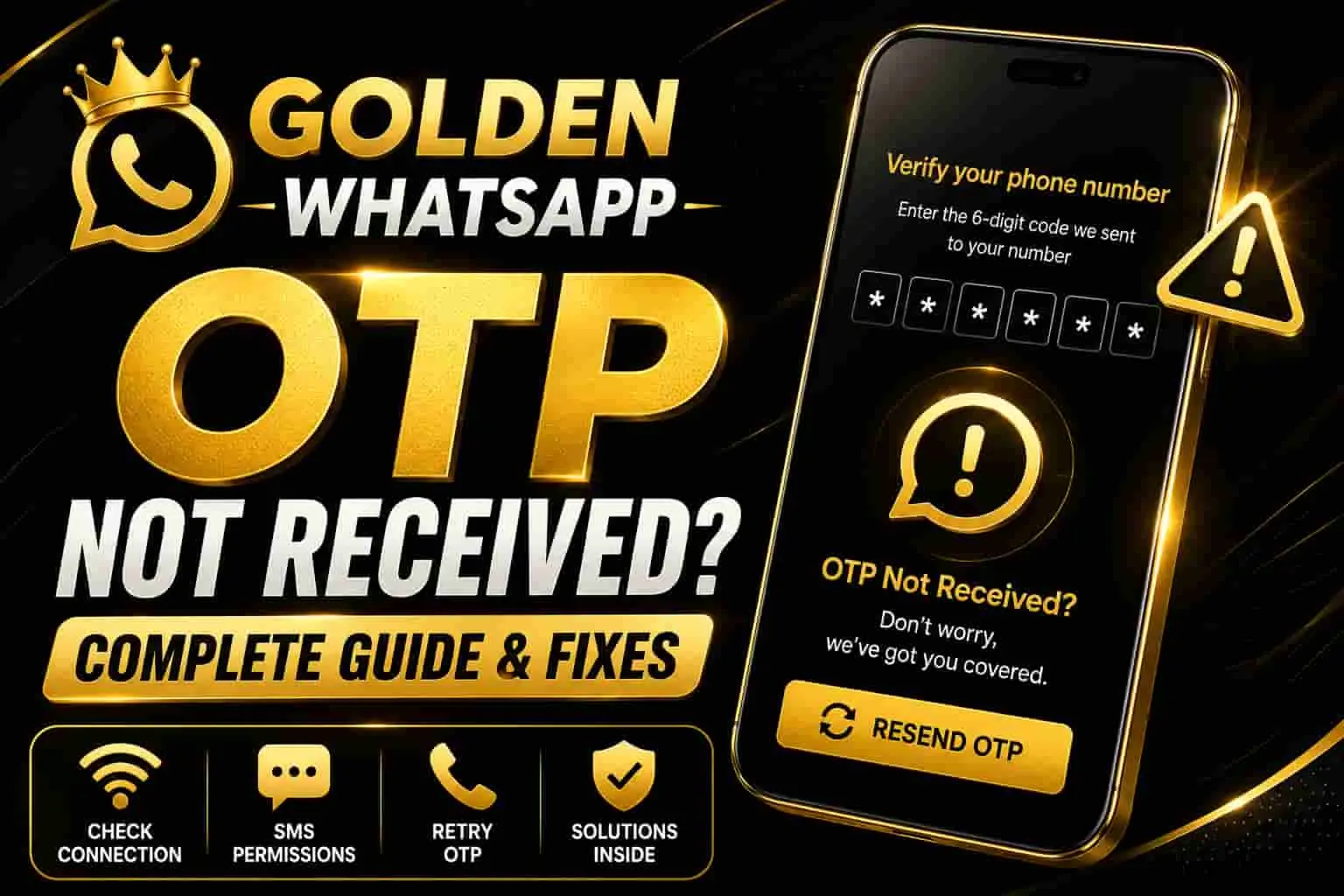
Golden WhatsApp OTP Not Received – Complete Fix Guide
Why your WhatsApp verification code isn’t arriving, and how to fix it step by step.
Table of Contents
1. Why WhatsApp OTP Doesn’t Arrive
Not receiving your WhatsApp OTP (One-Time Password) is one of the most common issues faced during account setup or login. It usually happens because of a weak network connection, an incorrect phone number, carrier delays, or a temporary block from WhatsApp’s server. The good news is that most of these problems can be solved in just a few minutes without needing technical help.
If you’re setting up Golden WhatsApp for the first time, you can also review our Golden WhatsApp main guide for general information about the app and its setup.
Before trying advanced fixes, always double-check that your SIM has active service and that you’ve entered the correct country code and phone number during registration.
2. Step-by-Step Solutions
Check Your Network Connection
Switch between Wi-Fi and mobile data to see if the OTP arrives. A weak or unstable connection is the most common reason SMS codes get delayed.
Use “Call Me” Instead of SMS
On the OTP screen, wait for the timer to finish and tap “Call Me.” WhatsApp will call you and read the code aloud instead of sending a text.
Restart Your Phone
A simple restart refreshes your network connection and can resolve delayed SMS delivery caused by a temporary carrier glitch.
Check Message/Spam Blocking Apps
Some SMS-blocking or spam-filter apps silently block OTP messages. Disable them temporarily and try again.
Wait 24 Hours Before Retrying
If you’ve requested too many codes in a short time, WhatsApp may temporarily rate-limit your number. Waiting a few hours usually resolves this automatically.
Contact WhatsApp Support
If nothing works after 24 hours, go to WhatsApp’s official Contact Us page and explain the issue — they can manually review your number.
If the OTP problem started after reinstalling the app and you also have a previous backup, you may want to review our Golden WhatsApp backup restore troubleshooting guide.
3. Common Causes & Quick Fixes
4. Extra Tips to Prevent This Issue
- Always keep your phone’s date & time set to automatic.
- Avoid registering the same number repeatedly within a short period.
- Make sure your SIM is active and not expired or suspended.
- Keep WhatsApp updated to the latest version from the Play Store or App Store.
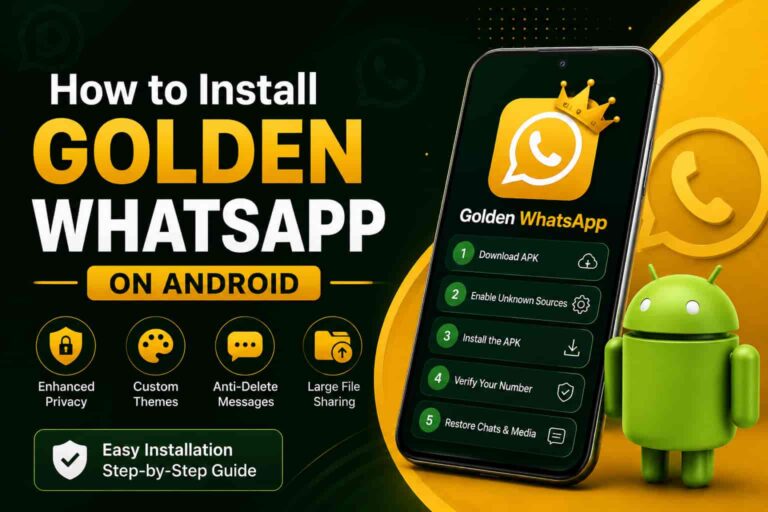
If you are reinstalling Golden WhatsApp after encountering an issue, follow the Golden WhatsApp installation guide for Android to make sure the setup process is completed correctly.
For additional troubleshooting after installation, you can also read our guide on Golden WhatsApp not working.
Still Not Receiving Your OTP?
Get direct help and try our recommended troubleshooting checklist now.
Explore Golden WhatsApp Guide5. Frequently Asked Questions
Q: How long should I wait before requesting a new OTP?
WhatsApp usually allows a retry after a short countdown (shown on screen). If it still fails, wait at least a few hours before trying again.
Q: Does changing my SIM slot help?
Yes, sometimes switching SIM slots refreshes the network registration and helps SMS delivery.
Q: Is it safe to use the “Call Me” option?
Yes, it’s an official WhatsApp feature and works exactly like the SMS option, just delivered as a phone call.
Q: What should I do if OTP works but my backup is not showing?
If verification succeeds but your previous backup cannot be detected, read our Golden WhatsApp backup restore guide for the next troubleshooting steps.
Q: What if Golden WhatsApp keeps stopping after installation?
If the app crashes or keeps stopping after installation, see our Golden WhatsApp keeps stopping or crashing guide.