
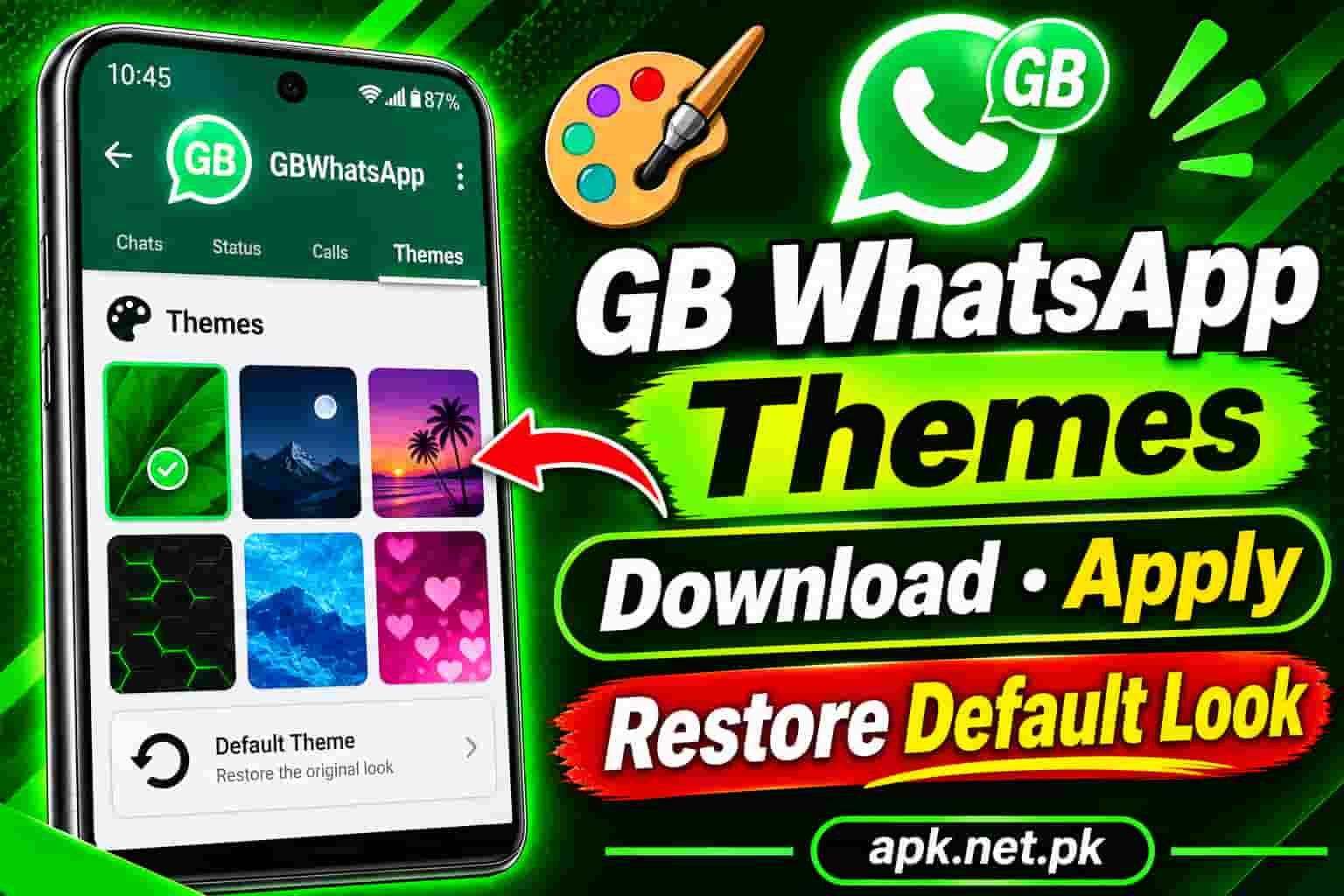
GB WhatsApp Themes : Download, Apply, and Restore the Default Look
The standard WhatsApp interface gives you a choice of light or dark. That is it. GB WhatsApp gives you a library of over 4,000 themes that can change every detail of the app’s appearance in a few taps. Colors, chat bubbles, fonts, icons, backgrounds, the whole visual experience transforms instantly. This guide covers every aspect of GB WhatsApp themes: how to download and apply them from inside the app, how to load theme files you download externally, how to customize individual elements on top of a theme, and how to get the original default look back whenever you want.
What Are GB WhatsApp Themes?
A GB WhatsApp theme is a design package that changes the visual appearance of the entire app at once. It is not just a background image. A full theme replaces the color scheme of the chat list, the chat screen, the navigation icons, the message bubbles, the notification bar style, and in many cases the font style as well.
GB WhatsApp reads theme data from files stored in XML or ZIP format. When you apply a theme, the app reads that file and repaints its entire interface according to the instructions inside it. If you remove the theme, it goes back to reading its built-in default values instead.
This is fundamentally different from what the official WhatsApp offers. The official app added chat themes in 2025 that change the wallpaper and bubble color of individual chats. GB WhatsApp themes go much further: they redesign the entire interface at a system level, including screens that the official app’s themes do not touch at all, like the settings screens, the contact list, and the status tab.
Applying or changing a theme does not affect your chats, contacts, media, or any data inside the app. It is a visual layer only. You can switch themes as many times as you want without any risk to your message history.
Types of Themes Available in GB WhatsApp
GB WhatsApp themes fall into several broad categories. Understanding the categories helps you find what you are looking for faster in the built-in theme library.
| Category | What It Looks Like | Best For |
|---|---|---|
| Dark and AMOLED | Near-black or pure black background throughout the app | Battery saving on OLED screens, night-time use, eye comfort |
| iOS Style | Mimics the visual design of WhatsApp on iPhone, with Apple-style UI elements | Android users who prefer the iOS interface look |
| Minimal and Clean | White or near-white with simple typography and subtle color accents | Professional use, distraction-free chatting |
| Gradient and Colorful | Bold background gradients with vibrant bubble and icon colors | Users who want a lively, expressive interface |
| Nature and Scenic | Photo-based backgrounds from landscapes, forests, and skies | Atmospheric visual experience, nature lovers |
| Animated Themes | Moving background elements in the chat screen | Visual impact, modern feel |
| Anime and Illustrated | Anime-style artwork, cartoon characters, and illustrated UI elements | Fans of anime and illustrated aesthetics |
| Custom XML | Any design a creator builds and shares as a file | Specific designs not found in the built-in library |
The built-in theme library organizes themes by newest first by default, but you can search by name. If you have a specific style in mind, typing a keyword like “black,” “iOS,” “minimal,” or “neon” into the search bar inside Download Themes brings up matching results immediately.
How to Download and Apply a Theme in GB WhatsApp
The fastest and safest way to change your theme is through the built-in theme browser inside GB WhatsApp. You never need to leave the app or download files from external websites. The entire process takes about a minute.
Steps to Download and Apply a Theme from the Built-in Library
- Open GB WhatsApp on your Android phone.
- Tap the three-dot menu icon in the top-right corner of the main chat screen.
- Tap GB Settings. This opens the GB WhatsApp-specific settings panel, which is separate from the regular WhatsApp settings.
- Tap Themes. The theme management screen opens.
- Tap Download Themes. The built-in theme library loads, showing thousands of available designs organized by newest additions at the top.
- Browse the list or use the search bar to find a theme you like. Many themes show a preview thumbnail so you can see what the interface will look like before you apply it.
- Tap the theme you want to preview it in more detail.
- Tap Apply or Download and Apply. GB WhatsApp downloads the theme file, applies it instantly, and then prompts you to restart the app.
- Tap OK when asked to restart. The app closes and reopens with the new theme active across the entire interface.
GB WhatsApp always asks you to restart after applying a theme. This is normal and expected. The restart takes about five seconds and is how the app rebuilds its interface with the new design. Do not skip the restart or the theme will not load correctly.
Applying a Theme You Already Downloaded Previously
If you downloaded a theme earlier and want to switch back to it, you do not need to download it again. Go to GB Settings, then Themes. Under the Download Themes option, you will see a section called Downloaded or My Themes (the label varies slightly by build version) that lists all themes you have previously fetched. Tap the one you want and tap Apply.
How to Load an External Theme File (XML or ZIP)
Some GB WhatsApp themes are shared as standalone XML or ZIP files on community websites and forums. These themes are not in the built-in library but can be loaded manually using the Load Theme option. The process is slightly different from the built-in browser but just as straightforward.
Steps to Apply an External Theme File
- Download the theme file (in XML or ZIP format) to your phone’s storage. Save it somewhere easy to find, such as your Downloads folder.
- Open GB WhatsApp and go to the three-dot menu, then GB Settings, then Themes.
- Tap Load Theme. A file picker will open showing your phone’s storage.
- Navigate to the folder where you saved the theme file and tap on it to select it.
- GB WhatsApp reads the file and applies the theme. If the file is valid, the app will prompt you to restart.
- Tap OK to restart. The new theme will be active when the app reopens.
GB WhatsApp only recognizes theme files in XML and ZIP formats. If you try to load a file in any other format, the app will not recognize it. ZIP format is used when a theme includes custom image assets alongside the XML styling data. XML-only themes handle everything through color and style values without additional image files. Both formats work exactly the same way in terms of the loading process.
Where to Find External GB WhatsApp Theme Files Safely
The safest external sources for GB WhatsApp theme files are dedicated community pages run by the same teams that maintain the app itself. Avoid downloading theme files from random forums or file-sharing sites where you cannot verify who created the file. A malicious XML file is rare but not impossible. Sticking to known sources removes that risk entirely.
Most Popular GB WhatsApp Themes Worth Trying
With over 4,000 themes in the library, knowing where to start can feel overwhelming. These are the most consistently popular categories and specific themes that have remained favorites across multiple GB WhatsApp versions.
The iOS theme remakes the entire GB WhatsApp interface to look and feel like WhatsApp on iPhone. It replicates the font choices, button styles, chat bubble shape, and color palette of the iOS version of the app. It is consistently the most searched and most downloaded theme in the library. Search “iOS” in Download Themes to find the latest version.
A deep black base color with refined typography and subtle contrast accents. This is the go-to for OLED and AMOLED screen users because pure black pixels on OLED displays use almost no power. The result is a sharp, premium-looking interface that also saves battery life.
A popular dark theme with a wolf-themed background art design. The black base color makes it ideal for AMOLED screens. The wolf artwork gives the chat screen a distinctive look that sets it apart from standard dark themes. Search “Leideh Wolf” in Download Themes.
Strips everything to clean lines and a plain white background. No bold colors, no decorative elements. This theme focuses entirely on readability and speed. It is the preferred choice for professional use where the app needs to look as simple and distraction-free as possible.
Bold neon outlines and glowing accents on a dark background. Chat bubbles and interface elements use bright neon colors that stand out vividly. Very popular with younger users who want an energetic, modern look.
Inspired by Android’s Material You design language introduced with Android 12. Uses soft gradients and smooth color transitions that adapt to the overall visual feel of modern Android. A great fit for users who want their GB WhatsApp to look at home on a current Android phone.
If your phone has an OLED or AMOLED display, choosing a dark or pure-black GB WhatsApp theme has a real impact on battery life. OLED screens produce no light from black pixels, so a pure-black interface draws significantly less power than a white one. The difference is most noticeable during heavy messaging sessions.
Customize Individual Elements on Top of Your Theme
Applying a theme gives you a complete new look in one step. But GB WhatsApp also lets you override individual visual elements of any theme to create a truly personal combination. You can mix a dark theme base with a custom bubble color, a different font, and a specific wallpaper without replacing the whole theme.
Change Chat Bubble Style and Color
Go to GB Settings, then Themes, then Style Settings or Customize UI (the exact path varies slightly by version). Here you can change the shape of message bubbles to rounded, squared, iOS-style, or no bubble at all. You can also set a custom color for your outgoing and incoming bubbles independently of the theme.
Change Font Style
GB WhatsApp includes more than 30 built-in font options. Go to GB Settings, then Themes, then Font. Select any font from the list and tap Apply. The font change applies across all text in the app immediately. Some builds also allow you to install a custom Android font file for additional choices beyond the built-in options.
Change Tick Mark Style
Message delivery tick marks can be changed from the classic double-check to arrows, circles, hearts, or several other shapes. Go to GB Settings, then Themes, then Tick Style. This detail is small but adds a finishing touch that makes the interface feel genuinely personalized.
Per-Chat Customization
GB WhatsApp also supports setting a different bubble style for individual chats or groups while keeping the main theme consistent everywhere else. Open the specific chat, tap the contact or group name at the top, and look for the Custom Theme option in the chat settings. This lets you give one conversation a completely different visual style than the rest of your app.
After building a custom look by mixing a base theme with your own color and font choices, you can save the whole combination as a new theme file. Go to GB Settings, then Themes, and look for the Save or Export Theme option. The app creates an XML file containing all your custom values. Keep this file as a backup or share it with others.
Change the Chat Wallpaper in GB WhatsApp
Wallpaper in GB WhatsApp is separate from the full theme system. The theme controls the whole app interface. The wallpaper controls only the background image visible behind messages inside a chat. You can change the wallpaper without changing your active theme at all.
How to Change the Chat Wallpaper
- Open GB WhatsApp and go to any chat.
- Tap the three-dot menu at the top right, then tap Wallpaper.
- Choose from the built-in wallpaper library (100+ options), your phone’s gallery, a solid color, or no wallpaper at all.
- Select your preferred option and tap Set Wallpaper.
Alternatively, you can change the wallpaper globally for all chats at once. Go to Settings, then Chats, then Wallpaper. Any wallpaper you set here applies to every chat. Individual chat wallpapers you set separately will override the global setting for those specific conversations.
How to Set a Different Wallpaper for Each Chat
Open the specific chat. Tap the contact name or group name at the top. Scroll down to find Wallpaper. Set a custom wallpaper here and it applies only to that conversation. All other chats keep the global wallpaper setting.
How to Restore the Default Look in GB WhatsApp
This is the question that most guides skip or answer poorly. Here are three reliable methods to get back to the original GB WhatsApp appearance, from fastest to most thorough.
Method 1: Apply the Default Theme from the Themes Screen (Fastest)
- Open GB WhatsApp and go to the three-dot menu, then GB Settings, then Themes.
- On the themes management screen, look for a theme labeled Default or WhatsApp Default at the top of the list or in a separate section. This is the pre-installed theme that comes with the app.
- Tap it and tap Apply.
- Restart the app when prompted.
Method 2: Clear the Active Theme from the Themes Screen
Some GB WhatsApp builds provide a More or Options button on the themes screen (usually a three-dot or settings icon on that specific page). Tapping it shows a Clear or Reset option. Tapping Clear removes the active theme and returns the app to its default appearance automatically on the next restart.
Method 3: Delete the Theme File from Storage (Most Thorough)
If the in-app reset does not work for some reason, you can remove the active theme at the file level.
- Open your phone’s file manager and navigate to Internal Storage / GBWhatsApp.
- Look for a file called selected_theme.xml or a folder called themes. The file name varies by build version.
- Delete the active theme file. Do not delete the entire themes folder unless you want to remove all downloaded themes.
- Reopen GB WhatsApp. Without a theme file present, the app falls back to its built-in default appearance automatically.
To reset the chat wallpaper independently of the theme, go to Settings, then Chats, then Wallpaper, then No Wallpaper or Default Wallpaper. This removes any custom wallpaper without affecting the active theme.
If you switched from GB WhatsApp to the original app and want to restore the official green look, that is a different process entirely because it involves switching apps rather than just changing a theme. The guide on original GB WhatsApp and switching back covers that in full.
Theme Not Applying? Troubleshooting Common Problems
Sometimes a theme downloads but does not apply correctly. The most common issues have straightforward causes and fixes.
Theme Applied but the App Looks the Same
You need to restart GB WhatsApp after applying a theme. If you tapped Apply but then pressed the back button without letting the restart happen, the theme is queued but not active. Force close the app from your phone’s recent apps screen and reopen it. The theme should now be active.
Theme Downloaded but Throws an Error When Applied
Some themes are built for specific GB WhatsApp build versions. A theme created for an older build may not work correctly on the version you have installed, and vice versa. Try a different theme or update to the latest GB WhatsApp version. The GB WhatsApp update page has the most recent verified build.
Load Theme Option Does Not Find the File
GB WhatsApp needs storage permission to access files on your device. If the file picker opens but shows nothing, go to Android Settings, then Apps, then GB WhatsApp, then Permissions, and make sure Storage is set to Allow. After enabling storage permission, try loading the theme file again.
Theme Applies but Some Screens Look Wrong
Some themes are partial themes. They cover the main chat screen and home screen but do not reskin all secondary screens such as the settings pages or status tab. This is a limitation of the theme file, not a bug. Try a different theme or use the customization options described in Section 6 to manually adjust the elements the theme left unchanged.
App Crashes After Applying a Theme
A corrupted theme file or one that is fundamentally incompatible with your GB WhatsApp version can occasionally cause a crash loop. If the app crashes repeatedly after applying a theme, use a file manager to navigate to Internal Storage / GBWhatsApp and delete the active theme file as described in Method 3 of Section 8. This forces the app to fall back to the default look on its next launch and resolves the crash.
If GB WhatsApp is completely stuck in a crash loop and will not open, go to Android Settings, then Apps, then GB WhatsApp, then Storage, and tap Clear Cache. This clears the active theme data along with other cached files. The app will reopen in its default state. Your chats are stored in a separate database and are completely unaffected by clearing the cache. For more persistent issues, the full GB WhatsApp not working guide covers every crash fix.
Are Third-Party GB WhatsApp Theme Files Safe?
Theme files in XML and ZIP format are design files. A properly structured XML theme file contains color values, font references, and style instructions. It does not contain executable code, so a theme file by itself cannot install malware or access your data.
The practical risk with theme files comes from packaging. Someone could share a ZIP file that contains a theme XML alongside an APK or other executable file. If you extract the ZIP manually and run something inside it, you could expose yourself to risk. If you load the ZIP directly through GB WhatsApp’s Load Theme function, the app only reads the XML portion. It ignores anything that is not a valid theme component.
The safest approach is to use the built-in theme library almost exclusively and only load external theme files from sources you trust. The built-in library is curated by the GB WhatsApp development team and contains no malicious content. External sources should be chosen carefully.
It is also worth noting that GB WhatsApp itself is a third-party modified app. If you are using it, you have already made a considered decision about the trade-offs involved. For a full picture of what those trade-offs are, the guide on whether GB WhatsApp is safe to use covers the security considerations in detail. Always use the latest verified build from a trusted source. Download it from the GB WhatsApp download page.
Frequently Asked Questions
How do I download and apply a theme in GB WhatsApp?
Open GB WhatsApp, tap the three-dot menu, then GB Settings, then Themes, then Download Themes. Browse or search the library for a theme you like. Tap it, then tap Apply. GB WhatsApp will download the theme and ask you to restart the app. Tap OK and the new theme will be active when the app reopens.
How do I go back to the default GB WhatsApp theme?
Go to GB Settings, then Themes. Look for the Default or WhatsApp Default theme at the top of the list and tap Apply. The app will ask you to restart. After restarting, the original default appearance is restored. If you do not see a default option, tap the More or Options button on the themes screen and select Clear to remove the active theme.
What file format do GB WhatsApp themes use?
GB WhatsApp themes use XML and ZIP formats. XML files contain color and style data only. ZIP files are used when a theme includes custom image assets alongside the styling data. Both formats are loaded through the same Load Theme option in GB Settings.
Are GB WhatsApp themes free?
Yes, every theme in the built-in GB WhatsApp theme library is completely free to download and apply. There is no paid tier or premium theme category inside the app. You can download and switch between as many themes as you want at no cost.
How many themes does GB WhatsApp have?
GB WhatsApp’s built-in theme library contains over 4,000 themes organized by newest additions at the top. You can browse the full list or use the search bar to filter by style keyword. The library is updated regularly and new themes are added by the community.
Why is my GB WhatsApp theme not applying after I tap Apply?
GB WhatsApp requires a restart to activate a newly applied theme. If you tapped Apply but the interface looks unchanged, force close the app from your recent apps screen and reopen it. The theme should now be active. If it still does not apply, the theme may be incompatible with your current GB WhatsApp version. Try a different theme or update to the latest build.
Can I use a different theme for individual chats?
Yes. GB WhatsApp supports per-chat customization. Open the specific chat, tap the contact or group name at the top, and look for the Custom Theme or Wallpaper option in the chat settings. Changes made here apply only to that conversation. All other chats keep the main app theme unchanged.
Does changing a theme affect my chats or messages?
No. Themes are purely cosmetic. Applying, changing, or removing a theme has absolutely no effect on your message history, contacts, media, or any data inside the app. You can switch themes as many times as you want without any risk to your content.
How do I load a theme file I downloaded from an external website?
Download the XML or ZIP theme file to your phone’s storage. Open GB WhatsApp and go to GB Settings, then Themes, then Load Theme. Use the file picker that opens to navigate to the downloaded file and tap it. GB WhatsApp reads the file and applies the theme. Restart when prompted.
GB WhatsApp crashed after I applied a theme. How do I fix it?
If the app is stuck in a crash loop after applying a theme, go to Android Settings, then Apps, then GB WhatsApp, then Storage, and tap Clear Cache. This removes the active theme data along with other cached files. The app will reopen in its default state without the problematic theme. Your chats and messages are stored in a separate database and are not affected by clearing the cache.
Can I change fonts in GB WhatsApp separately from the theme?
Yes. Font selection is independent of the theme. Go to GB Settings, then Themes, then Font. GB WhatsApp includes over 30 built-in font options. Select any font and tap Apply. The font change takes effect across the entire app immediately and does not change your active theme or any other visual element.
Bottom Line
GB WhatsApp themes are one of the most compelling reasons people choose the mod over the official app. The built-in library of over 4,000 free themes covers every style from pure-black AMOLED designs to iOS-style interfaces to animated backgrounds. The process is simple: open GB Settings, tap Download Themes, pick one, tap Apply, and restart.
For the original look at any time, go back to GB Settings, Themes, and apply the Default theme. The in-app default option is the fastest way back and takes the same effort as applying any other theme.
Always run the latest verified build to access the full theme library and ensure compatibility with every theme you try. Download it from the official GB WhatsApp page at APK.net.pk.
Sources
- TweakLibrary, “Discover The 10 Best WhatsApp Themes Worth Trying” (2025)
- Tenorshare, “Best GBWhatsApp Themes Download Collection” (2026)
- Wondershare MobileTrans, “Best In-built GB WhatsApp Themes” (2025)
- GBWTA, “GB WhatsApp New Trending Themes You Must Try in 2026”
- APKProLand, “Download GB WhatsApp Themes and Wallpapers” (2026)

One Comment