GB WhatsApp Shows Numbers Instead of Contact Names: Fixes
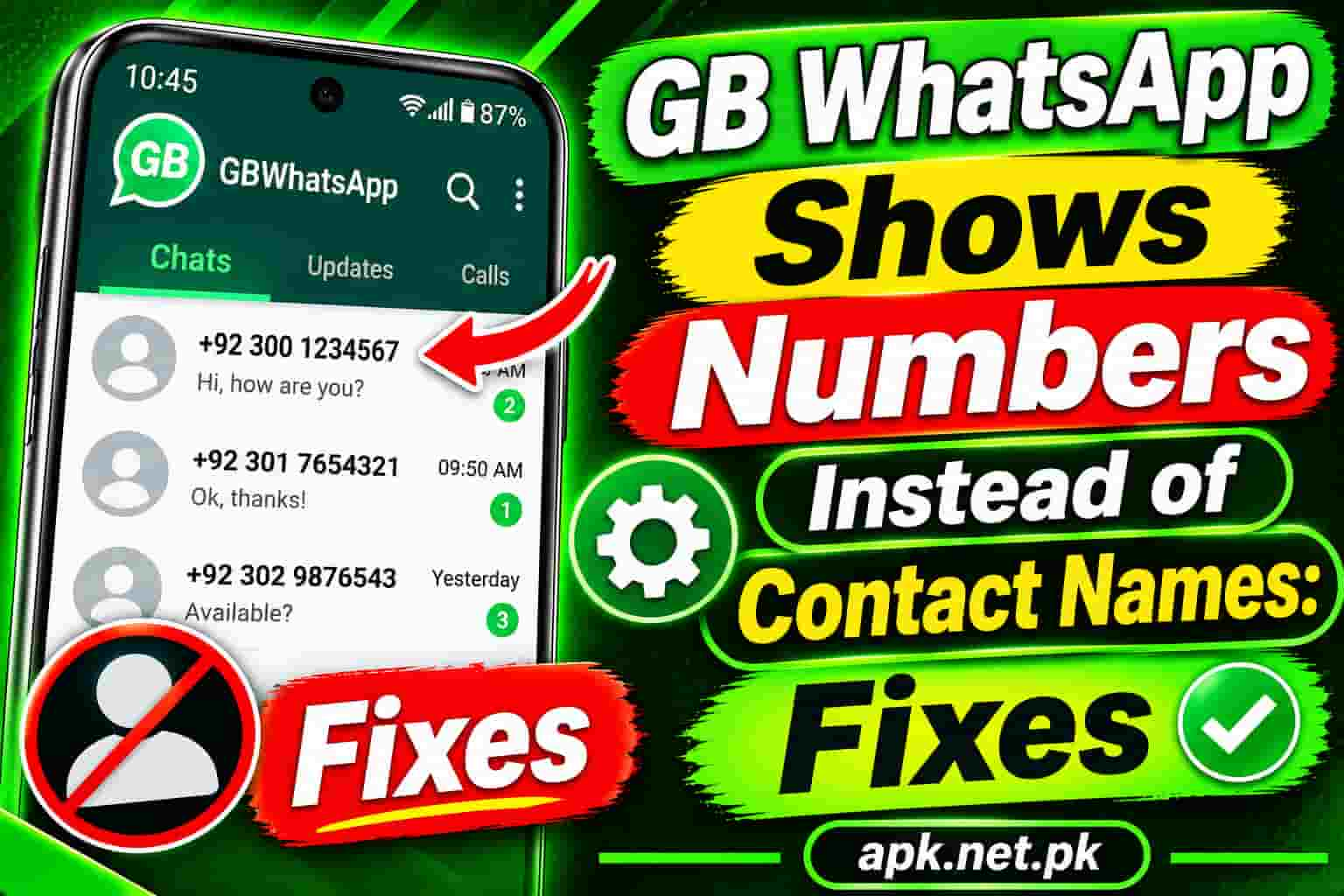
You open GB WhatsApp and your chat list is full of phone numbers. The names of your contacts have disappeared completely. You know who most of these people are, but staring at a string of digits makes it impossible to tell at a glance. This is one of the most common GB WhatsApp complaints, and the good news is that it almost always has a simple cause and a quick fix. This guide covers every reason it happens and walks you through every solution, in order from fastest to most thorough.
Why GB WhatsApp Shows Numbers Instead of Contact Names
GB WhatsApp does not store contact names internally. Instead, it reads names from your phone’s address book every time you open the app. If anything breaks that connection between GB WhatsApp and your contacts list, the app falls back to displaying raw phone numbers because that is the only identifier it still has access to.
There are six main causes of this problem. Knowing which one applies to you helps you go straight to the right fix instead of trying everything at random.
| Cause | How to Spot It | Who It Affects |
|---|---|---|
| Contacts permission blocked | All contacts show as numbers | Everyone, very common after app updates |
| Contact sync not running | Names disappear after a device restart or account change | Android users with Google account sync disabled |
| Wrong number format | Only some contacts show numbers, usually international ones | Anyone with contacts saved without a country code |
| Contact saved in wrong account | Name shows in phone book but not in GB WhatsApp | Users with multiple Google or SIM accounts |
| Stale app cache | Issue appeared suddenly without changing any settings | Any user, more common after updating the mod |
| Outdated GB WhatsApp build | Issue appeared after a recent phone OS update | Users running older GB WhatsApp versions |
Every solution in this guide is non-destructive. The problem is always about the connection between GB WhatsApp and your contacts, not about your message data. You will not lose a single chat, photo, or message by working through these fixes.
Fix 1: Enable Contacts Permission in Android Settings
This is the most common cause and the first thing to check. GB WhatsApp needs explicit permission from Android to read your phone’s address book. If that permission is off, the app cannot see any contact name at all and shows raw phone numbers instead.
This permission often gets disabled automatically after certain Android system updates, app updates, or when the phone’s battery optimization resets app permissions. You may never have turned it off yourself.
Steps to Enable Contacts Permission for GB WhatsApp
- Open the Settings app on your Android phone.
- Tap Apps or Application Manager (the exact label varies by phone brand).
- Find GB WhatsApp in the list and tap it.
- Tap Permissions.
- Find Contacts in the list of permissions.
- Tap it and select Allow or change it from Deny to Allow.
- Go back to GB WhatsApp. Within a few seconds, contact names will start appearing in your chat list.
Select the plain Allow option where available. Some Android versions show three choices: Allow all the time, Allow only while using the app, and Don’t allow. For GB WhatsApp to read contacts correctly even when you first open the app, the Allow option works best. “Only while using” also works but can sometimes cause a brief delay before names load.
If all your contacts now show names, you are done. If only some are still showing numbers after granting permission, the remaining contacts have a different issue such as a wrong number format, which Fix 4 covers.
Fix 2: Refresh the Contact List Inside GB WhatsApp
Even after enabling the permission, GB WhatsApp sometimes needs a nudge to re-read your contact list. The permission tells the system to allow access, but GB WhatsApp’s internal contact cache may still be holding outdated data. A manual refresh forces it to pull the current names from your address book.
Steps to Refresh Contacts in GB WhatsApp
- Open GB WhatsApp on your phone.
- Tap the new chat icon (the pencil or speech bubble icon in the bottom-right corner).
- On the contacts screen that appears, tap the three-dot menu at the top right.
- Tap Refresh. GB WhatsApp will scan your phone’s contacts and update its internal list.
- Go back to your main chat list and check whether names now appear.
Alternatively, some GB WhatsApp builds let you trigger the same refresh from Settings. Go to Settings, then Contacts, and tap Refresh. The result is the same either way.
If the refresh did not solve the problem completely, do not stop here. Go through the remaining fixes in order. The refresh step works best when permission was already enabled but the cache was simply stale. If permission was the issue, the refresh will work. If the problem is number format or account location, you need Fixes 4 and 5.
Fix 3: Reset the WhatsApp Contact Sync
Android uses a background sync process to keep GB WhatsApp’s contact list up to date. If that sync becomes stuck or corrupted, names stop updating even when permission is enabled. Resetting the sync forces a full rebuild from scratch.
Steps to Reset WhatsApp Sync on Android
- Open the Settings app on your phone.
- Go to Accounts or Accounts and Backup.
- Tap Manage Accounts.
- Scroll through the list and find WhatsApp. Tap it.
- Tap Account Sync or Sync Now.
- If you see a toggle for Contact Sync, make sure it is turned on.
- Tap the three-dot menu and select Sync Now to force an immediate sync.
- Open GB WhatsApp and check your chat list.
On some Android builds, the WhatsApp sync account can become permanently stuck. If Sync Now does not trigger a fresh sync, remove the WhatsApp account entry from the Accounts screen (this only removes the sync account, not your chats or contacts), then reopen GB WhatsApp. The app will recreate the sync entry fresh on the next launch.
Fix 4: Check and Correct the Phone Number Format
This fix applies when only some contacts show as numbers while others display correctly. The contacts that still show numbers are saved in a format that GB WhatsApp cannot match to its own records.
GB WhatsApp matches contacts by phone number. If the number saved in your address book does not exactly match the number registered on WhatsApp, the app cannot link them and shows the raw number instead of a name. The most common mismatch is a missing country code.
What Correct Phone Number Format Looks Like
| Country | Wrong Format | Correct Format |
|---|---|---|
| Pakistan | 03001234567 | +923001234567 |
| India | 09876543210 | +919876543210 |
| United Kingdom | 07700900000 | +447700900000 |
| United States | 5551234567 | +15551234567 |
| UAE | 0501234567 | +971501234567 |
How to Fix the Number Format
- Open the specific chat in GB WhatsApp that is showing a number instead of a name.
- Tap the number at the top of the chat. It will show the contact info screen.
- Note the exact number that GB WhatsApp has registered for this person.
- Open your phone’s Contacts app and find the contact (or create it if it does not exist).
- Edit the phone number and add the plus sign followed by the country code at the beginning. Remove any leading zero from the local number. For example, for a Pakistani number starting with 03, replace the 0 with +92 so it reads +923xxxxxxxx.
- Save the contact.
- Return to GB WhatsApp and go to Settings, then Contacts, then Refresh.
- The contact name should now appear in the chat.
Open any chat where the person messaged you. Tap their number at the top to see the full international number GB WhatsApp has on record. That is exactly the format you need to match in your Contacts app. Copy the number from GB WhatsApp and paste it when editing the contact to avoid any typos.
Fix 5: Check Where the Contact Is Saved
Android stores contacts across multiple locations at the same time. A contact can be saved to your Google account, your SIM card, your phone’s local storage, a Samsung account, or an Outlook account. GB WhatsApp can only reliably read contacts saved to your Google account or the phone’s local storage. It cannot access contacts saved to a SIM card properly in all cases.
If a contact is saved on your SIM, it will show in your phone’s native dialer and contacts app perfectly fine. But GB WhatsApp may not be able to match it and will show the raw number instead.
How to Move a Contact from SIM to Google Account
- Open your phone’s Contacts app.
- Open the contact that is showing as a number in GB WhatsApp.
- Look at the top of the contact edit screen for a label that says where it is saved. It might say SIM, Phone, or your Google email address.
- If it says SIM or Phone, tap the three-dot menu inside the contact and look for a Move to Google Account or Export to Google option.
- Move the contact to your Google account.
- Open GB WhatsApp, refresh contacts, and check whether the name now appears.
As a general rule, avoid saving contacts to your SIM card if you use GB WhatsApp. SIM storage is a legacy format with limited data capacity and inconsistent app access across Android versions. Saving everything to your Google account gives you the most reliable contact name display in GB WhatsApp and also makes contacts available across all your devices automatically.
Fix 6: Clear GB WhatsApp Cache
GB WhatsApp builds an internal contact cache that it uses to match numbers to names quickly. If that cache becomes corrupted or outdated, the app keeps displaying old data (or no data) even when the underlying contacts are correct. Clearing the cache forces the app to rebuild it from scratch on the next launch.
Steps to Clear GB WhatsApp Cache
- Open your phone’s Settings app.
- Go to Apps or Application Manager.
- Find and tap GB WhatsApp in the list.
- Tap Storage.
- Tap Clear Cache. This removes temporary files only. Your chats and contacts are completely safe.
- Reopen GB WhatsApp. The app will rebuild its contact cache from your phone’s current address book.
Clearing cache is one of the safest actions you can take. It has no downside and often resolves cases where contacts suddenly disappear after GB WhatsApp auto-updated or the phone restarted.
Fix 7: Enable Google Account Contact Sync on Android
GB WhatsApp ultimately reads contacts through Android’s system contacts provider, which is fed by your Google account sync. If Google account sync is paused or restricted, your phone’s contact list becomes stale, and GB WhatsApp reflects that stale state.
Steps to Check and Enable Google Contact Sync
- Open your phone’s Settings app.
- Go to Accounts or Accounts and Backup, then Manage Accounts.
- Tap your Google account.
- Tap Account Sync or just Sync.
- Find Contacts in the list and make sure the toggle next to it is turned on.
- Tap the three-dot menu and select Sync Now to force an immediate sync.
- Wait for the sync to complete, then open GB WhatsApp.
If you have multiple Google accounts on your phone, check that the account where your contacts are saved is the one with sync enabled. Contacts saved in a secondary Google account that does not have sync active will not appear in GB WhatsApp even if the primary account syncs fine.
Android’s battery optimization feature can restrict background sync for apps it considers low-priority. Go to Settings, then Battery, then Battery Optimization. Find GB WhatsApp and set it to Don’t Optimize. Also check that Google services and Contacts Sync are not restricted. This one setting is responsible for many cases where names disappear intermittently, especially overnight or after the phone has been idle for a long time.
Fix 8: Restart Your Phone
A restart clears temporary system memory, resets all running background processes, and forces Android’s contacts provider to reload from scratch. Many cases where GB WhatsApp suddenly starts showing numbers after working fine resolve completely with a simple restart.
This is worth doing before moving on to the more involved fixes below. It takes 30 seconds and costs nothing. Hold the power button, choose Restart (not just turn off and back on, as a true restart flushes system memory more completely), and let the phone boot fully before opening GB WhatsApp again.
Fix 9: Update GB WhatsApp to the Latest Version
Older GB WhatsApp builds can develop compatibility issues with newer Android versions. After Android updates its contact access framework (which happened with Android 11’s scoped storage changes and again with subsequent versions), older mod builds may break in ways that affect how they read contacts. Running the latest stable build ensures you have fixes for these known compatibility issues.
Since GB WhatsApp is not on the Google Play Store, it does not update automatically. You need to download and install the latest APK manually. Always use a trusted source to avoid installing a modified or malicious version. The GB WhatsApp update page on APK.net.pk always lists the latest verified version.
Before installing a new version, go to GB WhatsApp Settings, then Chats, then Chat Backup, and create a fresh local backup. Installing over an existing build usually preserves your data, but having a backup protects you from any edge-case data loss during the installation. If you need a full guide on this, the GB WhatsApp backup and restore guide covers every step.
Fix 10: Reinstall GB WhatsApp
If none of the above fixes work, reinstalling the app is the most thorough option. A clean install resets all permissions, clears all cached data, and rebuilds the contact sync from scratch. This almost always resolves contact name issues that survive every other fix.
Steps to Reinstall GB WhatsApp Without Losing Chats
- Before you do anything else, open GB WhatsApp and go to Settings, then Chats, then Chat Backup. Tap Backup Now and wait for it to complete fully.
- Confirm the backup completed by going to your file manager and checking Internal Storage / GBWhatsApp / Databases. You should see a recently dated backup file.
- Uninstall GB WhatsApp from your phone. The GBWhatsApp folder in your storage will stay intact even after uninstalling.
- Download the latest version of GB WhatsApp from a trusted source. Use the GB WhatsApp download page to get the verified, clean APK.
- Install the APK and open it. When prompted to verify your phone number, enter it.
- When GB WhatsApp asks if you want to restore from a backup, tap Restore and wait for the process to finish.
- After restoration, go to Settings, then Contacts, then Refresh. Your contact names should now appear correctly.
After reinstalling, make sure to re-enable the Contacts permission from Android Settings as described in Fix 1, since a fresh install starts with no permissions granted.
Special Scenarios: Dual SIM, Work Profiles, and Group Chats
Some users run into the numbers-instead-of-names problem in specific situations that the standard fixes do not fully address. Here are the three most common special cases.
Dual SIM Phones
On dual SIM phones, contacts saved to SIM 1 may not be visible to GB WhatsApp installed on SIM 2 or vice versa, depending on how the phone manages SIM contact storage. The fix is to move all contacts from both SIM cards to your Google account. Open Contacts, go to Settings or Manage Contacts, and use the Import / Export function to move SIM contacts to Google. Once they are in your Google account, GB WhatsApp can read them reliably regardless of which SIM is active.
Work Profiles and Dual App Features
Many Android phones from Samsung, Xiaomi, and OnePlus include a Dual Apps or Work Profile feature that creates a separate, isolated environment for a second copy of an app. If you installed GB WhatsApp inside a work profile or as a dual app, it runs in a sandboxed environment that only has access to contacts stored in that same profile. It cannot see your personal contacts at all.
To fix this, either add the relevant contacts inside the work profile’s contacts app, or move GB WhatsApp back to your personal profile. Using GB WhatsApp in the standard personal environment gives it access to all your synced Google contacts without any sandboxing restrictions.
Contact Names Missing Only in Group Chats
In group chats, GB WhatsApp shows the contact name for members you have saved. For members you have not saved in your address book, it shows their phone numbers. This is by design, not a bug. The fix is simply to save those contacts to your phone. Open the group, tap on the number, and add them to your contacts. After a contact refresh, their name will show in the group.
If a contact is saved but still shows as a number only in groups, check that the number is saved in the full international format as described in Fix 4. Group chats are more sensitive to number format mismatches than one-to-one chats.
If you are also experiencing GB WhatsApp not working properly in other ways such as not connecting or crashing, the contact display issue may be a symptom of a wider problem with your current build. Check the GB WhatsApp not working troubleshooting guide for a full diagnosis of common app-level problems.
Frequently Asked Questions
Why is GB WhatsApp showing numbers instead of contact names?
GB WhatsApp reads contact names from your phone’s address book. If it cannot access that address book, it shows the raw phone number instead of a name. The most common reason is that the Contacts permission has been blocked or denied in your Android settings. The second most common reason is that a contact is saved without the correct country code, so GB WhatsApp cannot match the saved number to its own record. Enable the Contacts permission first, then refresh the contact list inside GB WhatsApp, and most cases resolve within seconds.
Why are some contacts showing names and others showing numbers in GB WhatsApp?
When only some contacts appear as numbers, the permission is likely already enabled. The contacts still showing as numbers are saved in a format that GB WhatsApp cannot match. Usually this means the number is missing a country code, or the contact is saved on a SIM card rather than in a Google account, or the number saved in your phone does not exactly match the number registered on WhatsApp. Open the chat with the problem contact, note the exact number GB WhatsApp shows, then edit that contact in your Contacts app to match that exact format including the plus sign and country code.
Will fixing the contact names delete my chats or messages?
No. Every fix in this guide is completely non-destructive. Enabling permissions, refreshing contacts, clearing cache, and even reinstalling GB WhatsApp with a backup do not touch your message history. The problem is about the connection between the app and your phone’s address book, not about the messages themselves. Your chats are stored in a separate database that none of these fixes modify.
GB WhatsApp shows the correct name in my phone contacts but still shows the number in the chat. Why?
This usually means the number format in your Contacts app does not exactly match what GB WhatsApp has registered for that person. Open the chat in GB WhatsApp, tap on the number to see the contact info screen, and note the exact number including country code that GB WhatsApp is trying to match. Then open your Contacts app, find that person, and edit their number to match exactly, including the plus sign and country code at the beginning. After saving the contact, go to GB WhatsApp Settings and refresh the contact list.
How do I refresh contacts in GB WhatsApp?
Open GB WhatsApp and tap the new chat icon. On the contacts screen, tap the three-dot menu at the top right and select Refresh. Alternatively, go to GB WhatsApp Settings, then Contacts, and tap Refresh. This forces GB WhatsApp to re-read your phone’s current address book and update its internal contact list. Names should start appearing within a few seconds of the refresh completing.
Why did contact names suddenly disappear in GB WhatsApp after a phone update?
Android system updates sometimes reset app permissions, including the Contacts permission for GB WhatsApp. After an update, go to Settings, then Apps, then GB WhatsApp, then Permissions, and check that Contacts is set to Allow. If it was reset to Deny or Ask every time, that explains the sudden disappearance of names. Re-enable it and refresh contacts in GB WhatsApp.
Can SIM card contacts show names in GB WhatsApp?
Sometimes, but unreliably. SIM card storage is a legacy format with limited capacity, and GB WhatsApp does not access SIM contacts consistently across all Android versions. The safe approach is to move all contacts from your SIM to your Google account. Open your phone’s Contacts app, go to Settings or Manage Contacts, and use Import to bring SIM contacts into your Google account. After the import and a contact refresh in GB WhatsApp, those names will appear reliably.
What is the correct phone number format to save contacts for GB WhatsApp?
Save every contact with the full international format: a plus sign, the country code, and then the local number without any leading zero. For example, a Pakistani mobile number 03001234567 should be saved as +923001234567. A UK number 07700900000 should be saved as +447700900000. Remove the leading zero from the local number and replace it with the country code after the plus sign. This format ensures GB WhatsApp can match the number in your address book to the number registered on the contact’s WhatsApp account.
GB WhatsApp shows contact names in one-to-one chats but not in group chats. Why?
Group chats show names only for members you have saved in your phone’s address book. Members you have not saved will appear as their phone numbers. This is normal behavior. To see names in the group, open the group, tap on each number you want to identify, and add them to your contacts with their full international number. After a contact refresh, their names will display in the group chat.
I tried all the fixes but GB WhatsApp still shows numbers. What else can I do?
If all ten fixes above have not resolved the issue, do a clean reinstall. Create a full local backup first from GB WhatsApp Settings, then Chats, then Chat Backup. Uninstall GB WhatsApp, download the latest clean version, reinstall it, verify your number, and restore from your backup. After reinstalling, enable the Contacts permission immediately in Android Settings and run a contact refresh. A clean install resolves virtually every persistent contact name issue. Make sure you download from a trusted source to avoid installing a corrupted or modified build.
Bottom Line: Names Come Back Quickly with the Right Fix
GB WhatsApp shows numbers instead of names for one of six reasons: blocked Contacts permission, stale sync, wrong number format, contact saved to SIM or wrong account, corrupted cache, or an outdated app build. Work through the fixes in order starting with Fix 1 (enabling Contacts permission) and Fix 2 (refreshing the contact list). The vast majority of cases resolve at one of those two steps.
For contacts that still show numbers after that, check the number format and make sure everything is saved with the correct country code in full international format. SIM card contacts are unreliable with GB WhatsApp, so move them to your Google account.
Always run the latest verified build to avoid compatibility issues with newer Android versions. Download it safely from the official GB WhatsApp page at APK.net.pk.
Sources
- TechBout, “Fix: WhatsApp Showing Contacts As Phone Numbers” (2025)
- GeekChamp, “Fix: WhatsApp Contacts Appearing as Phone Numbers in Android” (2026)
- iTechGuides, “Fix WhatsApp Contacts Appearing as Phone Numbers in Android” (2026)
- TechTippr, “WhatsApp Not Showing Contact Names? Here’s How to Fix It” (2026)
- DrFone / Wondershare, “Contact Names Not Showing in WhatsApp? Full Guide to Fix” (2025)