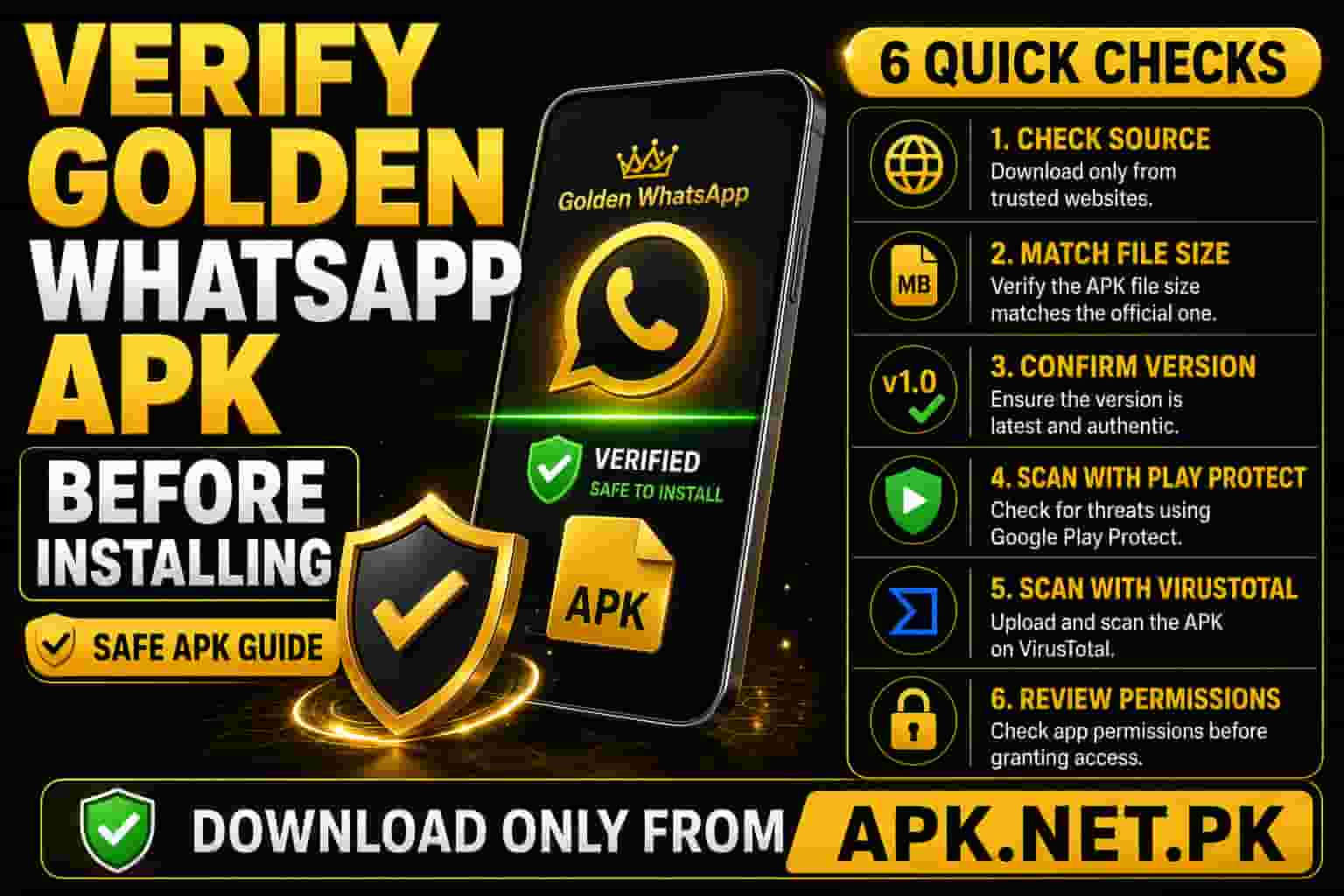
How to Verify Golden WhatsApp APK Before Installing
Golden WhatsApp APK Safety Guide
How to Verify Golden WhatsApp APK Before Installing
Before installing Golden WhatsApp APK, verify the download source, file name, version, file size, Android permissions, app scan result, and security warning. This quick safety check helps you avoid fake APK files, broken downloads, and risky third-party mirrors.
Official internal page: Golden WhatsApp Download
Quick Answer
To verify Golden WhatsApp APK before installing, download it from APK.net.pk, check the file name and version, compare the listed size, scan the APK with Google Play Protect or VirusTotal, review requested permissions, and install only if everything looks normal. After installation, learn how to hide chats and explore other Golden WhatsApp privacy features.
Moreover, do not install the APK if your browser changes the file name, Android shows a strong harmful-app warning, the file comes from a random Telegram group, or the app asks for permissions that do not match a messaging app.
Why You Should Verify the APK First
Golden WhatsApp is a third-party Android APK, so you install it manually instead of using Google Play Store. Because of that, you should check the APK carefully before you open it.
A proper verification check protects your phone from fake files, altered packages, malware copies, permission abuse, and incomplete downloads. In addition, it helps you install the correct version from the right source.
- It confirms that you downloaded the APK from the right website.
- It helps you avoid fake Golden WhatsApp copies.
- It reduces the risk of malware and spyware.
- It helps you catch suspicious permissions before installation.
- It gives you more confidence before you allow unknown app installation.
Step 1: Check the Download Source
First, confirm that you downloaded Golden WhatsApp from the official APK.net.pk page. Avoid shortened links, copied download pages, fake pop-ups, and mirror sites that use similar names.
A trusted APK source should show clear app details, version information, update notes, installation instructions, and related guides. Therefore, always check the page before downloading the file.
- Use the main page: Golden WhatsApp Download.
- Check older builds only from Golden WhatsApp Old Versions.
- Avoid APK files from unknown comments, groups, or copied blog pages.
- Do not download from pages that force multiple redirects.
- Do not install a file if the website name looks misspelled.
Step 2: Check APK File Details
Next, check the file before opening it. Your phone usually saves the APK in the Downloads folder. Open your file manager and review the file name, file size, download date, and source location.
Check the File Name
The file name should look related to Golden WhatsApp. Do not open files with strange names, random numbers, double extensions, or names that include terms like update-required, cleaner, booster, or unlocked-security.
Check the File Size
Compare the downloaded file size with the size shown on the APK.net.pk download page. A very small file, a zero-byte file, or a file size that looks completely different can point to a failed or fake download.
Check the Version
Match the version on the download page with the version you plan to install. If you want an older release for compatibility, use the old versions page instead of random APK mirrors.
Step 3: Scan the APK Before Installing
After checking the source and file details, scan the APK. This step gives you another layer of protection before installation.
Use Google Play Protect
Keep Google Play Protect active. It checks apps for harmful behavior and can warn you about unsafe apps from outside Google Play. Learn more from Google Play Protect.
Use VirusTotal
You can also scan the APK file with VirusTotal before installation. VirusTotal uses file analysis and SHA-256 based file reports, so it can help you review detection signals from multiple security engines. Visit VirusTotal Upload or read its file report documentation.
However, do not ignore a serious detection warning. If multiple trusted security engines flag the file, delete it and download again from the correct page.
Step 4: Review Android Permissions
Android permissions tell you what the app wants to access. A messaging app usually needs contacts, storage or photos, camera, microphone, and notifications. Still, you should review every permission before allowing access.
- Contacts access helps the app show your saved chat contacts.
- Camera access helps you send photos and record videos.
- Microphone access helps you send voice notes and make calls.
- Storage or photos access helps you send and receive media files.
- Notification access helps you receive message alerts.
- Location access should stay off unless you actively share location.
For official permission guidance, read Android Permissions.
Step 5: Install Golden WhatsApp Safely
Once the source, file details, scan result, and permissions look normal, you can install the APK. Keep the process simple and do not change unnecessary Android security settings.
- Back up your important chats first.
- Open the APK from your Downloads folder.
- Allow installation only for the browser or file manager you used.
- Install the APK and wait for Android to finish.
- Open the app and verify your number.
- Go back to Android settings and turn off unknown app access for that browser or file manager.
In addition, WhatsApp warns users about unofficial apps, so understand the privacy and account risks before using any modified WhatsApp version. Read the official WhatsApp guidance about unofficial apps. Once installed, explore powerful privacy features like how to hide chats in Golden WhatsApp.
Do Not Install If You See These Red Flags
Stop the installation if anything looks suspicious. A few warning signs can help you avoid fake APK files before they reach your phone.
- The APK came from a random mirror, group, or pop-up page.
- The file name looks unrelated to Golden WhatsApp.
- The file size does not match the listed download size.
- The download finishes instantly with a tiny file size.
- Android or Play Protect gives a strong harmful-app warning.
- VirusTotal shows several serious detections from trusted engines.
- The app asks for permissions that do not match messaging features.
- The app demands admin access, accessibility access, or notification reading without a clear reason.
FAQs
How do I verify Golden WhatsApp APK before installing?
Download it from APK.net.pk, check the file name, compare the file size, scan the APK with Play Protect or VirusTotal, review permissions, and install only if every check looks normal.
Should I scan the APK before installation?
Yes. You should scan any third-party APK before installation. This gives you an extra safety check before Android installs the app.
Which permissions should I check?
Check contacts, storage or photos, camera, microphone, notifications, and location. Allow only the permissions you need for messaging features.
Is Golden WhatsApp available on Google Play Store?
No. Golden WhatsApp is a third-party Android APK, so users install it manually from a download page instead of Google Play Store.
What should I do if Play Protect warns me?
Read the warning carefully. If Play Protect gives a strong harmful-app warning, do not install the file. Delete it and download again only from the correct page.
E-A-V Used
Entities used: Golden WhatsApp, APK file, Android, APK.net.pk, Google Play Protect, VirusTotal, Android permissions, WhatsApp unofficial apps, file manager, Downloads folder, SHA-256, package scan, and installation source. Attributes used: download source, file name, file size, version, scan result, permission type, security warning, app source, and installation status. Values used: verify before installing, download from APK.net.pk, compare file size, scan with Play Protect, scan with VirusTotal, review permissions, avoid mirror sites, delete suspicious APK, back up chats, and disable unknown app access after installation.