Golden WhatsApp Help & Troubleshooting
Golden WhatsApp Not Working Today
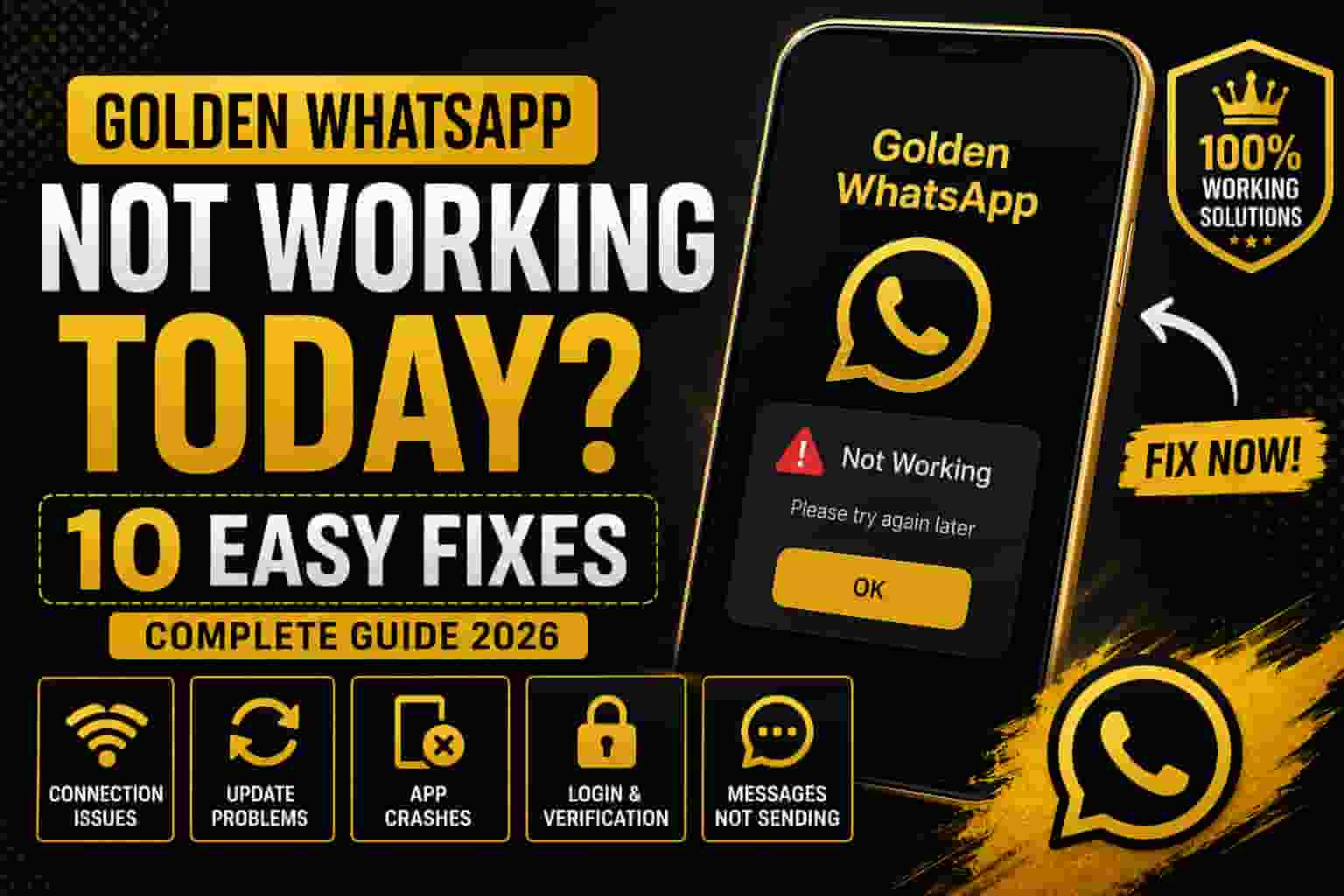
Is Golden WhatsApp not working today on your Android phone? You are not alone. Many users experience issues such as app crashes, connection errors, update failures, verification problems, or messages not sending. Fortunately, most of these issues can be fixed within a few minutes. This guide explains every common reason and provides simple solutions that actually work.
Table of Contents
Quick Answer
If Golden WhatsApp is not working today, first check your internet connection, restart your device, update the app to the latest version, and clear the application cache. If the issue continues, download the newest version from APK.net.pk or restore your backup after reinstalling the app. For persistent crashes, see our detailed guide on how to fix Golden WhatsApp crashes.
Why Is Golden WhatsApp Not Working Today?
Golden WhatsApp may stop working for different reasons. In most cases, the issue is related to an outdated APK, temporary server problems, corrupted cache files, Android compatibility issues, or incorrect app permissions. Sometimes the application may also stop working after a major Android system update.
Before trying advanced troubleshooting, identify the exact problem. For example, the app may crash on startup, fail to connect to the internet, or become stuck on the verification screen. Understanding the cause helps you choose the right solution quickly. If you’re also experiencing the app continuously stopping, our Golden WhatsApp crashing troubleshooting guide covers those specific issues in detail.
Common Reasons Golden WhatsApp Stops Working
- Using an outdated version of Golden WhatsApp – Old APKs become incompatible with new WhatsApp backends.
- Weak or unstable internet connection – Poor WiFi or mobile data causes connectivity failures.
- Corrupted cache or temporary files – Damaged app data prevents proper functioning.
- Android system compatibility issues – New Android versions may not support older APK versions.
- Missing storage or notification permissions – App requires proper access to function.
- Damaged installation files – Incomplete or corrupted APK download.
- Insufficient device storage – Not enough space for app operations.
- Temporary server-side issues – WhatsApp backend maintenance or outages.
Related Issues: If you’re experiencing frequent app crashes and stopping errors, that’s a different problem covered in our comprehensive troubleshooting guide. Also consider checking our comparison of WhatsApp mods to see if another option might work better for you.
How to Fix Golden WhatsApp Not Working Today
If Golden WhatsApp is not working properly, follow these proven solutions one by one. Most users solve their issues after step 2 or 3.
1. Restart Your Phone
A simple restart clears temporary system glitches and refreshes the app. Hold the power button, select “Restart,” and wait for your device to fully boot. This resolves most temporary connectivity and performance issues. Restarting is often the most overlooked step in Android troubleshooting guides.
2. Check Your Internet Connection
Switch between WiFi and mobile data to ensure your connection is stable and fast. Open another app like YouTube or a browser to confirm connectivity. Poor internet is one of the main causes of Golden WhatsApp connection failures. Also check if your phone has battery optimization enabled for messaging apps, as this can block notifications and connections.
3. Update Golden WhatsApp Immediately
Always install the latest version from APK.net.pk. Older versions may stop working after WhatsApp servers update. Check for updates regularly to stay compatible. Golden WhatsApp updates often include critical bug fixes that resolve connectivity and performance issues. If you prefer alternative mods, see our Aero WhatsApp vs other WhatsApp mods comparison guide.
4. Clear Cache Without Losing Chats
Go to Settings → Apps → Golden WhatsApp → Storage → Clear Cache. This removes temporary files without deleting your chats or settings. Corrupted cache is a common cause of app failures. If clearing cache doesn’t work, try our advanced app troubleshooting methods.
5. Check App Permissions
Allow Storage, Contacts, Phone, Notifications, and Camera permissions. Go to Settings → Apps → Golden WhatsApp → Permissions and enable all required access. Missing permissions are a frequent cause of app functionality issues. The notification permission is especially important for receiving messages properly.
6. Free Up Device Storage
If your phone has very little free space, Golden WhatsApp may crash or freeze. Delete unnecessary files, photos, videos, or old apps to free up at least 2 GB. Low storage prevents proper app operations and causes performance degradation. This is a critical step often overlooked by users.
7. Reinstall Latest Version (Last Resort)
If nothing else works, create a backup of your chats first using WhatsApp’s backup feature. Then uninstall Golden WhatsApp completely and download the latest version from APK.net.pk. Reinstall it and restore your backup. This fixes most persistent issues caused by corrupted installations or serious compatibility problems.
Important Tips for Golden WhatsApp Stability
- Always back up your chats before updating – Use WhatsApp’s built-in backup to Google Drive or local storage.
- Download Golden WhatsApp only from trusted sources – APK.net.pk is verified and safe. Avoid unknown websites.
- Keep Android updated – System updates patch security holes and improve app compatibility.
- Maintain at least 2 GB of free storage – Essential for smooth operation of any messaging app.
- Clear cache regularly for better performance – Do this every 2-4 weeks to prevent slowdowns.
- Avoid installing unknown modified APK files – Only use official or verified mod sources.
- Disable battery optimization for Golden WhatsApp – Battery saving mode can prevent notifications.
- Monitor your internet connection quality – Use a stable WiFi network for better reliability.
Related Guides & Resources
Explore more guides to master Golden WhatsApp features and fix other common issues:
- Golden WhatsApp Keeps Crashing – Complete Fix Guide – Detailed troubleshooting for app crashes and stopping errors.
- How to Use DND (Do Not Disturb) Mode – Master the silence feature to avoid distractions.
- How to Hide Chats in Golden WhatsApp – Privacy feature to keep sensitive conversations hidden.
- How to Add Stickers and Custom Packs – Customize your chats with fun sticker collections.
- Golden WhatsApp Features Complete Guide – Comprehensive overview of all advanced features.
- Golden WhatsApp vs Aero WhatsApp Comparison – Compare features, stability, and performance of popular mods.
- Browse All APK.net.pk Tutorials – Access our complete library of guides and downloads.
Continue Reading
You have now learned the most common reasons why Golden WhatsApp may stop working and the best ways to fix these problems. Continue to the next section where you’ll find frequently asked questions, advanced troubleshooting methods, and additional expert tips to keep Golden WhatsApp running smoothly on your Android device.
Frequently Asked Questions
Why is Golden WhatsApp not working today?
The most common reasons include an outdated APK version, poor internet connection, Android compatibility issues, corrupted cache, or temporary server problems. Start with the troubleshooting steps above to identify and fix the specific issue.
Will reinstalling Golden WhatsApp delete my chats?
Not if you create a backup before reinstalling. Always back up your chats using WhatsApp’s built-in backup feature before updating or reinstalling the application. Your conversations will be restored after reinstalling the latest version.
How can I update Golden WhatsApp safely?
Download the latest version from APK.net.pk and install it over the existing version whenever possible. This updates the app while preserving your settings and chats. Always backup first, then download from trusted sources only.
Why am I not receiving messages?
Check your internet connection stability, disable Do Not Disturb mode if enabled, ensure that battery optimization is not restricting Golden WhatsApp, and verify that notification permissions are granted. If messages still don’t arrive, try clearing the app cache.
Is the app getting stuck on verification?
Verification issues usually indicate internet problems or outdated APK versions. Check your connection, clear cache, update to the latest version from APK.net.pk, and try again. If it persists, check if your phone number is already registered with a different WhatsApp account.
Is Golden WhatsApp safe to use?
Yes, when downloaded from trusted sources. Always download the latest version from verified websites like APK.net.pk and keep it updated. Avoid unknown websites and suspicious links. Our site verifies all APK files before offering them for download, ensuring your safety and security. Also avoid using damaged or corrupted installation files.
What if clearing cache doesn’t fix the problem?
If cache clearing doesn’t work, try the advanced steps: clear both cache and data (after backup), reinstall the latest version, or check our comprehensive troubleshooting guide for app crashes which covers more complex issues.
Expert Tips for Long-Term Stability
- Keep Golden WhatsApp updated to the latest version – Check for updates weekly.
- Restart your phone after major updates – Ensures full system refresh and compatibility.
- Back up your chats regularly – Never skip this important safety step.
- Use a stable, high-speed internet connection – 4G or WiFi provides best performance.
- Keep at least 2 GB of free storage available – Essential for smooth operation and media downloads.
- Clear cache every 2-4 weeks for better performance – Prevents slowdowns from accumulated temporary files.
- Avoid installing unofficial APK files from unknown websites – Risk of malware and corrupted versions.
- Disable power-saving features for messaging apps – Battery optimization blocks notifications and connections.
- Monitor app permissions regularly – Ensure all required access is still enabled after system updates.
Common Mistakes to Avoid
- Ignoring available updates – Outdated app versions cause most issues.
- Deleting the app without creating a backup – Risk losing all conversations permanently.
- Installing damaged or incomplete APK files – Causes persistent crashes and security risks.
- Running out of device storage – Prevents apps from functioning correctly.
- Disabling required app permissions – App won’t work without essential access.
- Using outdated Android versions – Old Android OS may not support new APK versions.
- Downloading from untrusted sources – Risk of malware, viruses, and compatibility issues.
- Not clearing cache regularly – Corrupted cache files accumulate and cause slowdowns.
Helpful Resources & Support
- Official WhatsApp Help Center – Official WhatsApp support and FAQ.
- Android Help & Support – Google’s official Android troubleshooting guide.
- APK.net.pk Golden WhatsApp Hub – Complete guides, tutorials, and downloads for Golden WhatsApp.
- Android permission management guide – Learn about app permissions and how to manage them.
Conclusion: Get Golden WhatsApp Working Again
If Golden WhatsApp is not working today, there is usually no need to panic. Most issues are caused by outdated app versions, temporary cache problems, internet connectivity issues, or Android compatibility changes. By following the troubleshooting steps in this guide, you can quickly restore normal functionality without losing your chats or media.
Remember: The fastest fixes are usually the simplest ones. Start with restarting your phone and checking your internet connection. If those don’t work, update to the latest version from APK.net.pk and clear the cache. Nine out of ten users solve their problems using these basic steps.
For the latest Golden WhatsApp updates, tutorials, installation guides, and troubleshooting articles, visit APK.net.pk . We regularly publish new guides covering Golden WhatsApp features, comparisons with other mods, and step-by-step fixes for common issues.
E-A-V SEO Implementation
Entities: Golden WhatsApp, Android, APK, Internet Connection, Cache, App Permissions, WhatsApp Backup, WhatsApp Help Center, Battery Optimization, Storage Management.
Attributes: Update, Troubleshooting, Compatibility, Performance, Security, Connectivity, Installation, Privacy, Notifications, Verification.
Values: Step-by-step guidance, practical fixes, trusted resources, user safety, better performance, improved connectivity, and restored user experience without data loss.