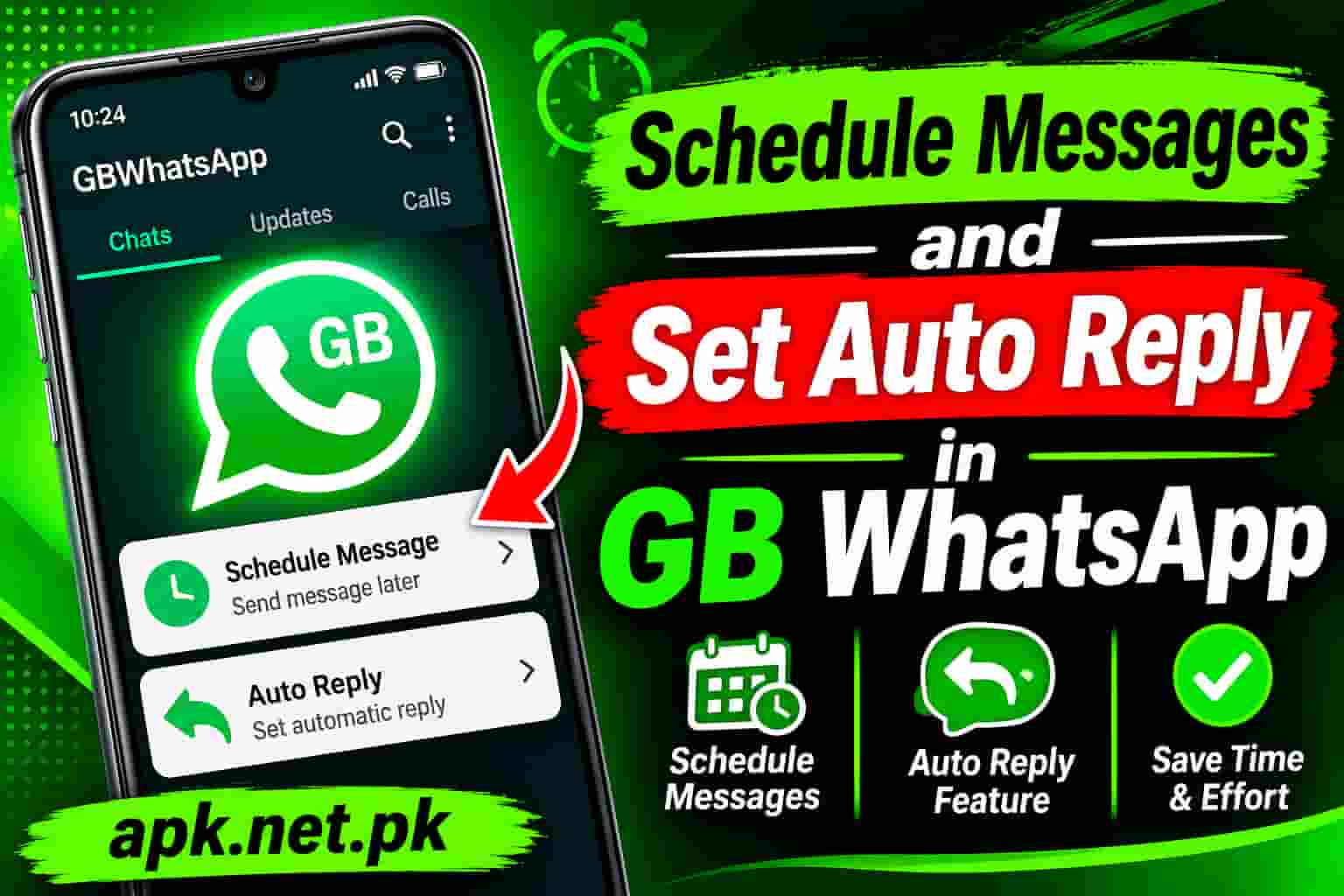
Schedule Messages and Set Auto Reply in GB WhatsApp
Two of the most useful things you can do in GB WhatsApp are schedule messages to send automatically at a future time and set up auto-reply rules so the app responds to incoming messages on your behalf. Neither feature exists in the standard WhatsApp app. Both are built directly into GB WhatsApp with no third-party tools required. This guide walks through every step for both features, covers every option you have, and shows you how to get them working correctly right now.
Why These Features Matter
Message scheduling and auto-reply solve the same core problem from two different angles. Scheduling handles your outgoing communication by letting you plan and queue messages in advance. Auto-reply handles your incoming communication by responding automatically when you are unavailable, busy, or simply want to send instant acknowledgments without being glued to your phone.
Together they let you run a much more professional and organized messaging operation than the official WhatsApp app allows. A freelancer can schedule a Monday morning check-in to every client on Sunday night. A shop owner can set up an auto-reply that immediately answers common questions like price, delivery time, and location. Neither person needs to be watching their phone for these responses to go out at exactly the right moment.
What makes GB WhatsApp’s versions of these features valuable is that they are built directly into the app. You do not need a third-party automation app, a bot service, or the WhatsApp Business API. Everything works from the app’s own settings on your Android phone.
How to Schedule a Message in GB WhatsApp
Scheduling a message in GB WhatsApp takes about ten seconds once you know the trigger. The key is long-pressing the Send button instead of tapping it. That single action opens the entire scheduling system.
Step-by-Step: Schedule Any Message
- Open GB WhatsApp and navigate to the chat where you want to send the scheduled message. This works for individual contacts and group chats equally.
- Type your message in the text input field. You can also attach photos, videos, documents, or voice notes before scheduling. Attachments are supported alongside text.
- Instead of tapping the green Send button once, press and hold it for about one second. A menu will appear with scheduling options.
- Tap Schedule Message from the menu that appears.
- A date and time picker opens. Set the exact date and time you want the message to be delivered. You can schedule as little as one minute ahead and as far as 30 days into the future.
- Tap Schedule or Confirm to finalize. The message moves into the scheduled queue and a small clock icon appears next to it in the chat to show that it is waiting to be sent.
GB WhatsApp runs the scheduler as a background service. The app does not need to be in the foreground or even on your screen when the scheduled time arrives. It sends automatically as long as the app is installed, your phone has an internet connection, and the app has not been force-closed by the system. To guarantee delivery, disable battery optimization for GB WhatsApp in your Android settings so Android does not kill the background process.
What You Can Schedule
GB WhatsApp scheduling supports the same content types that you can send in a normal message. You can schedule plain text, text with links, images, videos, documents, GIFs, and audio files. The full message, including any attachment, queues for delivery at the time you set.
Go to Android Settings, then Battery, then Battery Optimization. Find GB WhatsApp and set it to Don’t Optimize. This is the single most important step to ensure scheduled messages actually send at the time you set. Without it, Android may suspend the app’s background process and cause the scheduled send to be delayed or missed entirely.
View, Edit, and Cancel Scheduled Messages
After scheduling a message you are not locked in. GB WhatsApp gives you full control to review, change the time, or cancel any queued message before it sends.
How to View Your Scheduled Messages
- Open the chat where you scheduled the message. Any scheduled message shows in the chat with a small clock icon and a “Scheduled” label so you can spot it instantly.
- Alternatively, go to the three-dot menu, then GB Settings, then Scheduled Messages. This screen shows every pending scheduled message across all chats in one place, organized by delivery time.
How to Edit a Scheduled Message
- Open the chat with the scheduled message, or go to GB Settings, then Scheduled Messages.
- Long-press the scheduled message.
- Tap Edit from the menu. You can change the message text, the attachment, or the scheduled time.
- Make your changes and tap Reschedule or Save to update the queue.
How to Cancel a Scheduled Message
- Find the scheduled message in the chat or in GB Settings, then Scheduled Messages.
- Long-press it and tap Delete or Cancel Schedule.
- The message is removed from the queue immediately. It will not send.
A common concern is that scheduling locks the message in place. It does not. Up until the exact delivery moment, every scheduled message is fully editable. Change the text, swap the attachment, or move the time. Only after the message sends does it become a permanent part of the chat history.
Set Up Recurring Scheduled Messages
Beyond one-off scheduling, GB WhatsApp supports recurring sends. You can set a message to go out automatically on a repeating schedule: daily, weekly on a specific day, or monthly on a specific date. This is especially useful for regular announcements, check-ins, and reminders.
Steps to Schedule a Recurring Message
- Open GB WhatsApp and go to the chat you want to schedule the recurring message in.
- Type your message and long-press the Send button to open the scheduling menu.
- Tap Schedule Message.
- Set the first send date and time.
- Look for the Repeat or Recurring option in the scheduling panel. Tap it and choose your frequency: Daily, Weekly (then pick which day), or Monthly (then pick the date of the month).
- Optionally set an end date if you want the recurring schedule to stop automatically after a certain point.
- Tap Schedule to confirm. The message will send at the first scheduled time and then repeat on your chosen frequency until you cancel it or the end date arrives.
Practical uses for recurring scheduling include: a weekly Monday morning update to a work group, a monthly invoice reminder to a client, a daily opening hours reminder sent every morning to a customer group, and a weekly promotional message to your broadcast list.
Recurring messages continue sending until you cancel them. If you set up a weekly update and then forget about it, it will keep going. Check your Scheduled Messages list in GB Settings periodically and delete any recurring schedules that are no longer relevant.
Schedule Messages to Group Chats
The scheduling system works identically for group chats as for individual contacts. Open the group, type your message, long-press the Send button, and set the time. The message will be delivered to the entire group at the scheduled moment.
Group scheduling is particularly useful for: birthday announcements in family groups, weekly reminders in team groups, promotional messages sent to customer community groups, and event reminders the morning of the event.
One thing to keep in mind with group scheduling is that if the message is time-sensitive, such as a reminder for an event starting in an hour, make sure your phone is online around the delivery time. If your phone has no internet connection when the scheduled time arrives, the message will queue and deliver once you reconnect rather than arriving at the exact moment you intended.
How to Set Up Auto-Reply in GB WhatsApp
Auto-reply in GB WhatsApp is managed through the GB Settings panel. The basic setup takes about two minutes and handles the most common use case: sending an automatic response to any incoming message when you are unavailable.
Basic Auto-Reply Setup
- Open GB WhatsApp on your Android phone.
- Tap the three-dot menu icon in the top-right corner of the main chat screen.
- Tap GB Settings. This opens the GB WhatsApp-specific settings panel.
- Find and tap Auto Reply Message. The auto-reply management screen opens.
- Toggle the Auto Reply switch to the On position to activate the feature.
- Tap the plus or Add button to create your first auto-reply rule.
- Write the message text you want sent automatically in the message field.
- Choose who this rule applies to. Options are: All Contacts (everyone who messages you), Specific Contacts (selected people only), or Groups Only.
- Tap Save to activate the rule.
With this basic setup, GB WhatsApp will automatically reply with your chosen message any time someone sends you a message. If you want more control, the next sections cover keyword triggers, time restrictions, and advanced filters.
GB WhatsApp auto-reply supports three dynamic variables you can include in your message text. Use {name} to insert the sender’s contact name, {time} to include the current time, and {date} to include the current date. For example: “Hi {name}, thanks for messaging us on {date}. We will get back to you within 2 hours.” These fill in automatically when the reply sends, making your automated messages feel far more personal than a generic canned response.
Keyword-Triggered Auto-Reply Rules
The most powerful way to use auto-reply in GB WhatsApp is by setting different replies for different keywords. When a contact sends a message containing the word you specified as a trigger, that specific reply fires automatically. You can create as many keyword rules as you need, and each one sends a different response.
This is the feature that the official WhatsApp Business app completely lacks. Official WhatsApp Business allows only one away message and one greeting message, with no way to vary the response based on what the customer wrote.
Steps to Create a Keyword Auto-Reply Rule
- Go to GB Settings, then Auto Reply Message, and tap the Add or Plus button to create a new rule.
- In the Keyword or Trigger field, type the word or phrase that should activate this reply. For example, type “price” to trigger the rule when someone sends you a message containing the word price.
- Write the reply message that should go out when the keyword is detected. Keep it specific and directly helpful. The person asked about price, so the reply should include your actual prices or a link to your price list.
- Set who this rule applies to if you want to restrict it to specific contacts rather than everyone.
- Optionally set the active time window for this rule (covered in the next section).
- Tap Save. The rule is now active.
- Repeat the process to create additional keyword rules for other common queries.
How Multiple Rules Work Together
When someone sends you a message, GB WhatsApp checks all your active auto-reply rules in order. The first rule whose keyword matches the incoming message fires its response. If no keyword matches, GB WhatsApp checks whether you have a catch-all rule with no keyword set. If you do, that rule fires for all unmatched messages. If you do not have a catch-all, no auto-reply is sent for that message.
Start with the five questions you get most often. For a shop, those are typically: price, location, delivery, hours, and payment. Create one keyword rule for each. The result is an instant, accurate response to 80 percent of incoming inquiries without you touching the phone. Add more keywords over time as new common questions emerge.
Advanced Auto-Reply Options
Beyond the basic setup and keyword triggers, GB WhatsApp offers several advanced options that give you much finer control over when, how, and to whom auto-replies go out.
Time-Based Scheduling for Auto-Reply
You can restrict any auto-reply rule to specific hours and days. This is essential for after-hours replies. You want the away message to fire only when you are actually away, not during your working hours when you can respond personally.
- When creating or editing an auto-reply rule, look for the Schedule or Active Hours option.
- Toggle it on and set the start and end time for the rule. For example, set it to run from 7:00 PM to 9:00 AM to cover evenings and overnight.
- Optionally select which days of the week the rule is active, so it fires on weekdays only or on weekends only as needed.
- Save the rule. It will now only fire during the hours and days you specified.
Reply Delay
By default, auto-replies fire instantly when a message arrives. Some versions of GB WhatsApp include a reply delay option that waits a few seconds before sending the automatic response. Setting a delay of 2 to 5 seconds makes the reply feel less robotic and more like a real person typing quickly. Find this option in the Advanced section of an individual auto-reply rule or in the global Auto Reply settings.
Ignore Keywords
Some GB WhatsApp builds support an Ignore Keywords or Exclude Words list. Any message containing a word on this list will not trigger auto-reply, even if it also contains one of your trigger keywords. This is useful for filtering out messages from business partners, internal team members, or specific contacts that should never get automated responses.
Contact Scope
Each auto-reply rule can be scoped to a specific audience. The options in most GB WhatsApp builds are: All Contacts, Contacts Only (excluding unknown numbers), Specific Contacts (a manually selected list), or Groups Only. Setting scope correctly prevents your promotional auto-replies from firing in every group you are part of or to every unknown number that contacts you.
How to Manage and Edit Existing Rules
- Go to GB Settings, then Auto Reply Message. All your existing rules are listed here.
- Tap any rule to edit its message text, keyword, scope, or schedule.
- Toggle the active switch on a rule to pause it temporarily without deleting it.
- Long-press a rule and tap Delete to remove it permanently.
Ready-to-Use Auto-Reply Message Templates
These templates cover the most common business and personal auto-reply scenarios. Copy any of them, replace the bracketed placeholders with your own details, and paste the text directly into the GB WhatsApp auto-reply message field.
| Use Case | Trigger Keyword | Message Template |
|---|---|---|
| After-Hours Acknowledgment | (no keyword, catch-all) | Hi {name}! Thanks for reaching out. Our working hours are [9 AM to 6 PM, Mon to Sat]. We will respond to your message first thing in the morning. For urgent matters, call [phone number]. |
| Price Inquiry | price / pricing / cost | Hi {name}! Here is our current price list: [link or price details]. Feel free to reply if you have any questions about a specific item. |
| Location and Address | location / address / where | Hi {name}! You can find us at [your full address]. Google Maps link: [link]. We are open [days and hours]. See you soon! |
| Delivery Information | delivery / shipping / dispatch | Hi {name}! We deliver to [areas]. Standard delivery takes [X days] and costs [amount]. Express delivery ([X days]) is available for [amount]. Reply to place your order! |
| Booking Confirmation | book / booking / appointment | Hi {name}! To book an appointment, tell us the service you need, your preferred date and time. We will confirm within [time]. Alternatively, book directly here: [link]. |
| Payment Methods | payment / pay / transfer | Hi {name}! We accept [payment methods, e.g., bank transfer, cash, Easypaisa, JazzCash]. Bank details: [account name, number, bank]. Please send proof of payment after transfer. |
| General Business Hours | hours / timing / open | Hi {name}! Our hours are [Monday to Saturday, 9 AM to 7 PM]. We are closed on Sundays and public holidays. We look forward to serving you! |
| Out-of-Office Personal | (no keyword, catch-all) | Hi {name}! I am currently unavailable but will get back to you as soon as possible. If this is urgent, please call me directly. |
Use the {name} variable in every template so the message addresses the sender personally. A personalized auto-reply feels significantly warmer than a generic one and is far less likely to frustrate a customer who already knows they are receiving an automated response.
GB WhatsApp vs Official WhatsApp and WhatsApp Business: Full Comparison
Understanding exactly what each app offers for these two features helps you choose the right setup for your situation.
| Feature | GB WhatsApp | Official WhatsApp | WhatsApp Business App |
|---|---|---|---|
| Message Scheduling | Yes, full date and time scheduling | Rolling out in beta (long-press send, late 2025+) | Away and greeting messages only |
| Minimum schedule lead time | 1 minute | 1 minute (beta builds) | N/A |
| Maximum schedule window | Up to 30 days | Up to 30 days (beta builds) | N/A |
| Recurring schedules | Yes, daily, weekly, monthly | Not available | Not available |
| Schedule to groups | Yes | Yes (beta builds) | N/A |
| Auto-Reply | Yes, multiple keyword rules | No | One away message, one greeting only |
| Keyword triggers | Yes, unlimited rules | No | No |
| Time-based auto-reply | Yes, set hours and days per rule | No | Yes, business hours or custom schedule |
| Contact scope control | Yes, all, specific, or groups | No | Yes, all, contacts only, or specific contacts |
| Dynamic name variable | Yes, {name} | No | No |
| Reply delay option | Yes (some builds) | No | No |
| Third-party tools required | No | Yes (SKEDit, iOS Shortcuts) | No (for basic), Yes (for keywords) |
The comparison makes clear why GB WhatsApp attracts business users. For scheduling, it matches what the official app is slowly rolling out in beta, plus it adds recurring schedules. For auto-reply, it completely outperforms both official options with keyword triggers and multiple rule support that neither official app offers without paying for the WhatsApp Business API. For more on GB WhatsApp for business use overall, the full GB WhatsApp Business guide goes deeper into every business feature.
Troubleshooting: When Scheduling or Auto-Reply Fails
Both features work reliably on most builds, but there are a handful of specific issues that trip users up. Here are the causes and fixes for every common failure.
Scheduled Message Did Not Send at the Right Time
The most common cause is battery optimization. Android killed the GB WhatsApp background process before the scheduled time arrived. Go to Android Settings, then Battery, then Battery Optimization, find GB WhatsApp, and set it to Don’t Optimize. Also check that your phone was connected to the internet at the scheduled delivery time.
Long-Press on Send Button Does Not Show Scheduling Menu
This means your GB WhatsApp build does not support scheduling, or the feature is turned off. Update to the latest build first. If the option still does not appear after updating, the build you are using may not include this feature. The latest verified build can be downloaded from the GB WhatsApp download page.
Auto-Reply Is Not Firing for Incoming Messages
Check three things in order. First, confirm the Auto Reply toggle is turned on in GB Settings. It is easy to toggle it off accidentally. Second, check that the rule’s time window covers the current time. If you restricted the rule to after-hours only, it will not fire during your set working hours. Third, check that the contact scope covers the person who sent the message. If the rule is set to Specific Contacts, it only fires for people on that list.
Auto-Reply Fires for Messages in Groups You Did Not Intend
Open the auto-reply rule and change the scope setting. If it is set to All Contacts, change it to Contacts Only to exclude group chats, or select Specific Contacts to target only the people you want. Catch-all rules set to All Contacts will fire in every group, which can be annoying and may draw attention to the fact that you are using an automated system.
Auto-Reply Keeps Sending to the Same Person Repeatedly
Some GB WhatsApp builds have a cooldown or reply delay setting that prevents the same person from receiving the same auto-reply more than once in a set time window. Find the Repeat Interval or Reply Delay option in the advanced auto-reply settings and set a minimum delay of several minutes or hours between replies to the same contact.
App Not Working After Update
If scheduling or auto-reply stopped working after a GB WhatsApp update, the new build may have a temporary bug in those features, or the update reset your settings. Go back to GB Settings and re-enable the auto-reply toggle, check that your rules are still there, and re-verify the battery optimization setting. For broader app issues beyond these two features, the GB WhatsApp not working guide covers every fix.
Frequently Asked Questions
How do I schedule a message in GB WhatsApp?
Open the chat, type your message, then long-press the green Send button instead of tapping it. A menu appears with a Schedule Message option. Tap it and choose the date and time you want the message sent. Tap Schedule to confirm. The message will send automatically at the specified time even if the app is in the background.
Can I schedule messages in the official WhatsApp?
As of late 2025, WhatsApp began rolling out a native scheduling feature to some Android beta users using the same long-press method. It was not available to all users in stable builds as of late 2026. GB WhatsApp has had this feature as a standard built-in tool for much longer and also adds recurring scheduling that the official app does not have.
How do I set up auto-reply in GB WhatsApp?
Tap the three-dot menu, then GB Settings, then Auto Reply Message. Toggle Auto Reply on. Tap Add to create a rule. Write your message, choose who it applies to (all contacts, specific contacts, or groups), and optionally add a keyword trigger and time window. Tap Save. The auto-reply activates immediately.
Can GB WhatsApp auto-reply with different messages for different keywords?
Yes. This is one of GB WhatsApp’s most powerful business features. You can create multiple auto-reply rules, each with a different keyword and a different response message. When someone sends a message containing one of your keywords, that specific rule fires its reply automatically. The official WhatsApp Business app does not support keyword-triggered auto-replies without the paid WhatsApp Business API.
Does the phone need to be online for scheduled messages to send?
Yes. GB WhatsApp requires an internet connection on your phone at the time of delivery to send scheduled messages. The app does not need to be on screen, but the background process must be running and the phone must be online. If your phone is offline when the scheduled time arrives, the message will send once the connection is restored.
Can I cancel or edit a scheduled message after I set it?
Yes. You can edit or cancel any scheduled message at any time before it sends. Find it in the chat with the clock icon indicator, or go to GB Settings then Scheduled Messages. Long-press the message and tap Edit to change the content or time, or tap Cancel or Delete to remove it from the queue.
Can I set auto-reply to only run outside my business hours?
Yes. Each auto-reply rule has an optional Schedule or Active Hours setting. Enable it and set your off-hours window, such as 7 PM to 9 AM weekdays. The rule will only fire during those hours, so your personal responses are not interrupted by auto-replies during working hours.
Can I schedule messages to a WhatsApp group in GB WhatsApp?
Yes. The scheduling feature works the same way for group chats as for individual contacts. Open the group, type your message, long-press the Send button, set the date and time, and tap Schedule. The message will be delivered to the entire group at the scheduled time.
Why is my scheduled message not sending?
The most common reason is battery optimization. Android is preventing GB WhatsApp from running in the background. Go to Android Settings, then Battery, then Battery Optimization, find GB WhatsApp, and set it to Don’t Optimize. Also confirm that your phone had internet access at the scheduled time.
Can auto-reply send a message that includes the person’s name?
Yes. Add the variable {name} anywhere in your auto-reply message text and GB WhatsApp will replace it with the sender’s contact name when the reply is sent. You can also use {date} and {time} to insert the current date and time. These make automated replies feel personal and significantly less generic.
Bottom Line
Scheduling a message in GB WhatsApp takes ten seconds: type your message, long-press the Send button, pick a date and time, tap Schedule. That is it. For recurring sends, set the repeat frequency and end date in the same panel.
Auto-reply takes about two minutes to set up for the first rule. Go to GB Settings, tap Auto Reply, toggle it on, add a rule with your keyword and message, set the scope and time window, and save. Create one rule per common question and your app handles the first line of communication automatically.
Both features require GB WhatsApp to be installed and active on your phone with battery optimization disabled. Always run the latest verified build to get the most stable version of both features. Download it from the official GB WhatsApp page at APK.net.pk.
Sources
- iAmABiker, “WhatsApp Message Scheduling Rollout Starts on Android” (2026)
- Zoye.io, “WhatsApp Schedule Message: 6 Ways to Send Later in 2026”
- Online Tool Guides, “How to Schedule WhatsApp Messages on Android and iPhone” (2026)
- Eesel AI, “WhatsApp auto reply 2026: away message setup, templates, limits”
- GBWatsapp.net, “GB WhatsApp Message Scheduler: Send Messages at the Perfect Time” (2026)