How to Scan APK with Play Protect – Complete Guide 2026
Learn the complete step-by-step process to scan APK files using Google Play Protect, understand security risks, and keep your device safe from malicious applications.
📋 Table of Contents
1. What is Google Play Protect?
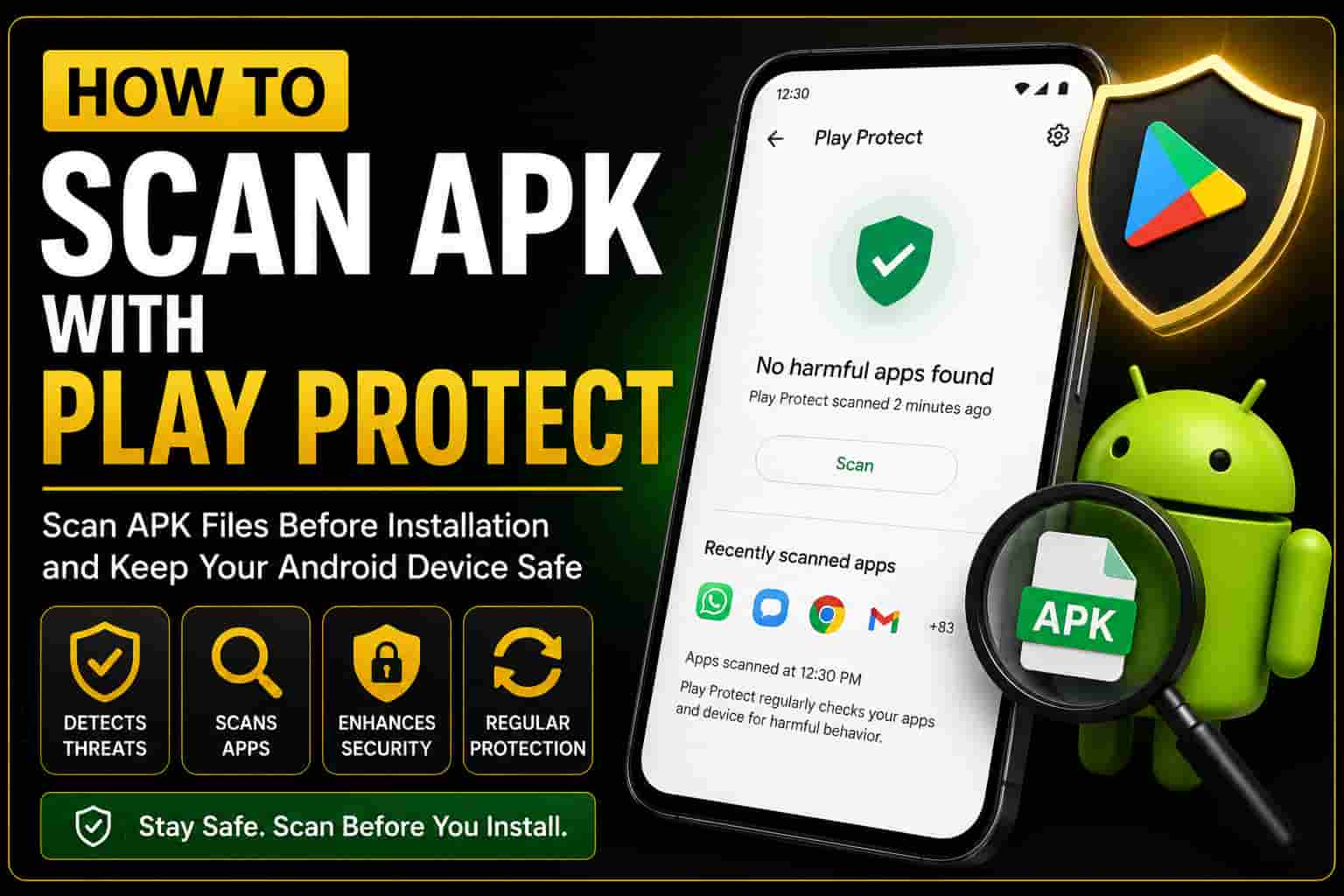
Google Play Protect is Google’s built-in security service for Android devices that automatically scans and monitors apps for malware, phishing threats, and other harmful content. It provides real-time protection for all apps installed on your device, whether they come from the Google Play Store or are sideloaded from external sources. If you’re planning to install Golden WhatsApp or any other APK, understanding Play Protect is essential for your device’s security.
Play Protect runs in the background and analyzes apps before, during, and after installation. It uses machine learning and a database of millions of known threats to identify potentially dangerous applications before they can harm your device or steal your personal data.
2. How to Enable Play Protect
Play Protect comes enabled by default on most Android devices, but it’s good to verify that it’s active on your phone. Here’s how to check:
Open Google Play Store
Launch the Google Play Store app on your Android device. You’ll find it on your home screen or in your app drawer.
Access Your Account Menu
Tap your profile icon in the top right corner of the Play Store. Select “Manage your Google Account” from the dropdown menu.
Navigate to Security Settings
Go to the “Security” tab. Look for “Google Play Protect” in the security options list.
Enable the Service
Toggle the switch next to “Scan device for security threats” to turn it ON. You should see a green checkmark confirming it’s active.
3. Step-by-Step APK Scanning Guide
To manually scan an APK file with Play Protect, follow these steps:
For Downloaded APK Files:
- Download the APK to your device or PC first. Make sure you’re downloading from a trusted source like APK.net.pk. We provide verified Golden WhatsApp downloads and other safe APKs.
- Transfer to your phone if downloaded on a PC. Use a USB cable or cloud storage (Google Drive, Dropbox).
- Open your file manager and navigate to the Downloads folder.
- Locate the APK file and long-press on it to see available options.
- Wait for Play Protect scan — your device may automatically scan the file before installation.
- Review the scan result — if it passes, you can proceed to install. If it fails, do not install the app. Check our APK verification checklist for additional safety steps.
4. Scanning Sideloaded APK Files
Sideloading means installing an app directly from an APK file instead of the Google Play Store. It requires enabling “Unknown Sources” on your device:
Enable Unknown Sources:
- Go to Settings → Apps & notifications → Advanced → Install unknown apps
- Select your file manager app and toggle ON “Allow from this source”
- This grants permission to install APKs manually
Perform the Scan:
- Open your file manager and navigate to the APK file
- Tap on the APK — Android will automatically prompt Play Protect to scan it
- Wait for the scan to complete (usually 5-30 seconds)
- If safe, you’ll see a “Install” button. If dangerous, Play Protect will block it
- Review the app permissions before tapping “Install”
5. Understanding Play Protect Scan Results
Play Protect will show you one of three results:
| Scan Result | What It Means | What You Should Do |
|---|---|---|
| Safe / Clean | No malware or security threats detected. The APK passed all checks. | Safe to install. Proceed with installation. |
| Warning / Caution | The app may request unusual permissions or behave suspiciously, but no confirmed malware was found. | Review permissions carefully before installing. Proceed at your own risk. |
| Dangerous / Blocked | Play Protect identified malware, spyware, or other harmful code in the APK. | Do NOT install. Delete the file and download from a trusted source instead. |
6. Alternative Scanning Methods
Besides Play Protect, you can use these additional tools to scan APK files:
- VirusTotal — Upload your APK to virustotal.com and scan it against 70+ antivirus engines. Free, no account needed.
- AVG Mobile Security — Third-party antivirus app available on Play Store. Provides additional scanning beyond Play Protect.
- Kaspersky Mobile Security — Another reputable antivirus with APK scanning capabilities.
- ESET Mobile Security — Lightweight antivirus that complements Play Protect scanning.
For maximum safety when downloading Golden WhatsApp or other WhatsApp mods, always:
- Download from APK.net.pk (trusted source with 10M+ downloads)
- Scan with Play Protect before installation
- Upload to VirusTotal for secondary verification
- Review all app permissions before granting access — read our safety guide on Golden WhatsApp
7. Best Practices for APK Safety
- Always use trusted sources — Download APK files only from well-known, verified platforms like APK.net.pk. Avoid fake sites that claim to offer Golden WhatsApp downloads.
- Enable Play Protect — Ensure it’s turned on in your Play Store settings at all times.
- Keep Play Services updated — Update Google Play Services from the Play Store to get the latest threat definitions.
- Check app permissions — Review what data an app is requesting before installation (camera, contacts, location, etc.). Learn more in our APK verification guide.
- Avoid clicking suspicious links — Never download APKs from links in emails, text messages, or pop-up ads.
- Use a VPN if needed — Add a VPN for extra privacy when downloading files from public networks.
- Disable Unknown Sources when not installing — Turn off the “Unknown Sources” permission in settings after sideloading apps.
- Regularly scan your device — Open Play Protect and tap “Scan device” monthly to ensure no threats have been installed.
Related Guides
Learn more about APK safety and download trusted applications.
8. Troubleshooting Scan Issues
Play Protect Won’t Scan My APK
Try these fixes: Restart your device, clear Play Store cache (Settings → Apps → Play Store → Storage → Clear Cache), or reinstall the Play Store update.
Scan Shows a False Positive
Sometimes legitimate apps trigger warnings due to how they request permissions. If you trust the source (like APK.net.pk), you can ignore the warning and install anyway — but do so at your own risk. For more info, see our comprehensive safety article.
Can’t Download APK Due to Security Block
Your device’s security settings or network administrator may be blocking downloads. Try using a different WiFi network or a VPN, or check your device’s security settings.
9. Frequently Asked Questions
Q: Is Play Protect enough to keep my device safe?
Play Protect is a strong first line of defense, but it’s not 100% foolproof. Combine it with safe browsing habits: download only from trusted sources, don’t click suspicious links, and keep your device updated. For extra security, use a third-party antivirus app alongside Play Protect.
Q: Can Play Protect scan APKs from sources other than the Play Store?
Yes. Play Protect can scan any APK file on your device, whether it’s from the Play Store, sideloaded, or downloaded from a website. It doesn’t matter where the file comes from — Play Protect will analyze it for threats.
Q: Why does Play Protect sometimes block apps that are actually safe?
This is called a “false positive.” It happens when an app’s code or permission requests look suspicious to Play Protect’s algorithms, even though the app is legitimate. If you trust the source (like APK.net.pk), you can override the warning and install anyway. Learn more about safe WhatsApp alternatives if you’re uncertain.
Q: How often does Play Protect update its threat database?
Google updates Play Protect’s threat database continuously — multiple times per day. This is why it’s important to keep Google Play Services updated on your device.
Q: Can I scan an APK on my PC before transferring to my phone?
Yes. You can upload any APK file to VirusTotal.com and scan it against 70+ antivirus engines. This is an excellent way to verify an APK’s safety before putting it on your Android device.
Q: Is it safe to download Golden WhatsApp from APK.net.pk?
Yes. APK.net.pk is Pakistan’s most trusted source for Golden WhatsApp, with over 10 million downloads. Every APK is verified, tested for malware, and regularly updated with anti-ban protection. Always use Play Protect to scan it before installation for maximum safety. Read our detailed safety and security guide for more information.
Q: What does “Scan device for security threats” do?
This feature tells Play Protect to do a full scan of all apps currently installed on your device. It’s different from scanning a single APK file. We recommend running this scan monthly to ensure no malware has been installed.
Q: Can Play Protect remove malware or just detect it?
Play Protect primarily detects and prevents malware installation. If an infected app is already on your device, Play Protect can alert you and recommend uninstalling it, but it doesn’t automatically delete malicious apps. You must uninstall them manually.