Golden WhatsApp Download Not Starting? Fix It Now
Golden WhatsApp Help
Golden WhatsApp Download Not Starting? Fix It Now
If Golden WhatsApp APK download is not starting, the issue usually comes from browser cache, weak internet, low storage, VPN, blocked permissions, or Android Download Manager. If you are starting from scratch, use the main Golden WhatsApp download page first.
Go to the official APK.net.pk page and try again: Golden WhatsApp Download
Quick Fix
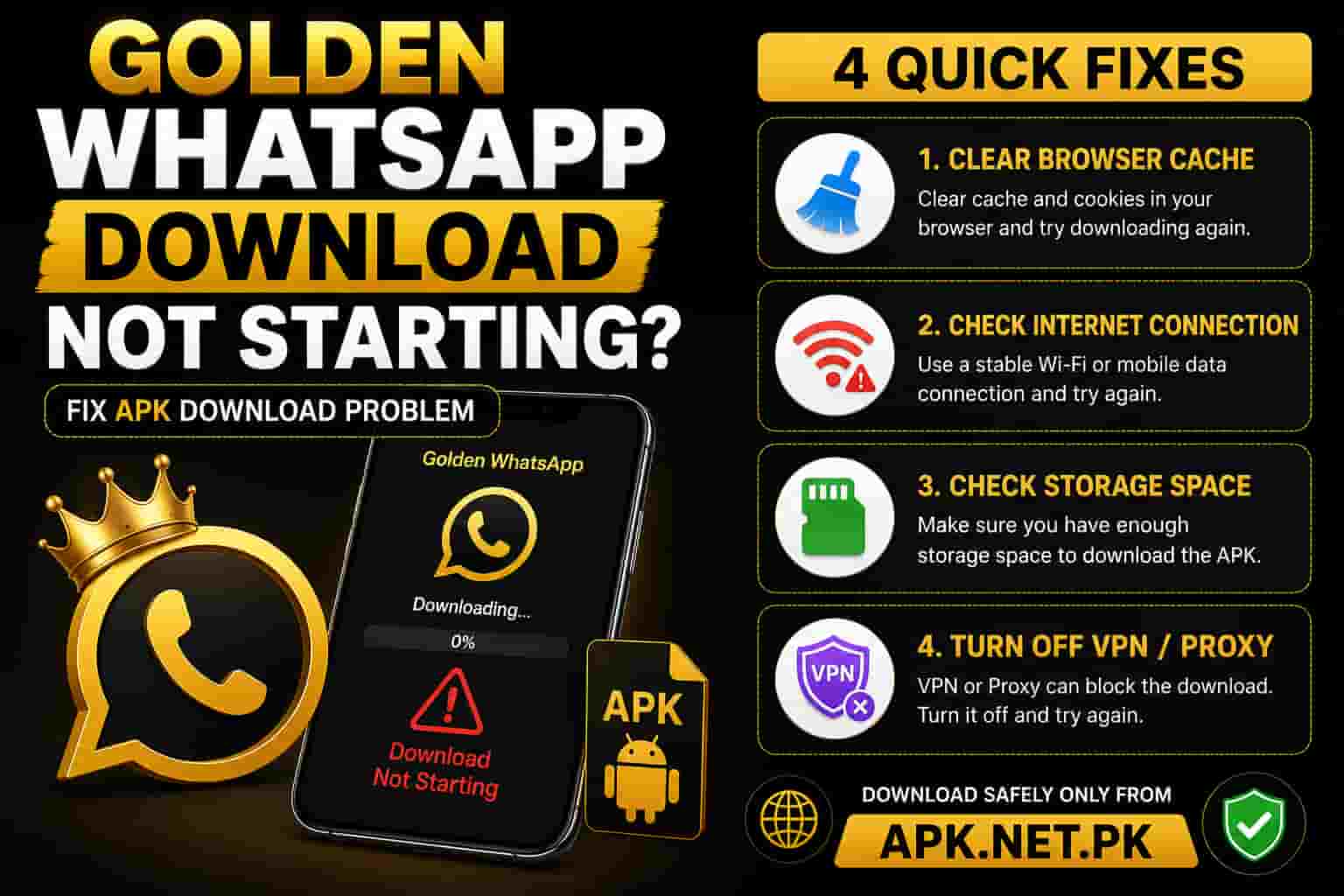
First, refresh the download page. Then open the page in Chrome, clear browser cache, turn off VPN, check storage, and tap the download link again.
In most cases, this method starts the Golden WhatsApp APK download without advanced settings. If you already have an older build installed, you can also check Golden WhatsApp old versions for a compatible release.
Common Causes
Golden WhatsApp is an APK file. Therefore, your Android phone, browser, network, and storage settings can stop the file before it starts downloading.
- Browser cache blocks the latest download request.
- VPN or proxy changes the download route.
- Weak Wi-Fi or mobile data stops the APK request.
- Low internal storage stops the browser from saving the file.
- Android Download Manager gets stuck in pending mode.
- Battery saver pauses background download activity.
Step-by-Step Fix
1. Refresh the Page
Reload the page and wait for a few seconds. After that, tap the download link only once.
2. Use Chrome Browser
Open the page in Chrome or your phone default browser. Avoid Facebook, WhatsApp, Telegram, or other in-app browsers.
3. Clear Browser Cache
Open browser settings and clear cached files. Then reopen the Golden WhatsApp download page.
4. Turn Off VPN
VPN and proxy apps can block APK download routes. Turn them off temporarily and try again.
5. Check Phone Storage
Delete old APK files, unused apps, duplicate photos, and large videos. Then start the download again.
6. Restart Your Phone
Restarting clears stuck browser tasks and Android Download Manager errors. If the APK downloads but the app later crashes, see our Golden WhatsApp crash troubleshooting guide.
Android Settings to Check
Android may stop downloads when storage, browser permission, battery saver, or Download Manager has a problem. So, check these settings before you retry.
- Open Settings and check free internal storage.
- Allow browser file download permission.
- Turn off battery saver during the download.
- Clear Download Manager cache from Apps settings.
- Restart the phone and open the download page again.
Network Fixes
A weak connection can make the download link look broken. However, the browser may simply fail before the APK request starts.
- Switch from mobile data to Wi-Fi.
- Switch from Wi-Fi to mobile data if Wi-Fi is slow.
- Turn off VPN, proxy, or private DNS temporarily.
- Restart your router if the connection drops often.
- Try again after a few minutes if the server is busy.
Safety Notes
Golden WhatsApp is a third-party APK. Therefore, download it carefully, review permissions, and keep Google Play Protect active. For a broader discussion of risks and safe use, read Is Golden WhatsApp Safe?.
If the app itself is not working after installation, see our Golden WhatsApp not working guide. Read official guidance about unofficial WhatsApp apps, Google Play Protect, and Android permissions.
FAQs
Why is Golden WhatsApp download not starting?
It may happen because of browser cache, weak internet, low storage, VPN, blocked redirects, or Android Download Manager issues.
Which browser should I use?
Use Chrome or your phone default browser. Avoid in-app browsers because they can block APK downloads.
Can low storage stop the APK download?
Yes. Low internal storage can stop the browser from saving the APK file. Free storage and try again.
Should I turn off VPN?
Yes, turn off VPN temporarily because VPN can slow the connection or block the download route.
Should I disable Google Play Protect?
No. Keep Google Play Protect active because it helps scan apps and warns you about unsafe behavior.
E-A-V Used
Entities used: Golden WhatsApp, APK file, Android, Chrome, browser cache, VPN, storage, Download Manager, Google Play Protect, APK.net.pk, and Android permissions. Attributes used: download status, browser issue, network quality, storage space, security warning, permission access, and server response. Values used: download not starting, clear cache, use Chrome, disable VPN, free storage, restart phone, retry download, keep Play Protect active, and use APK.net.pk download page.