
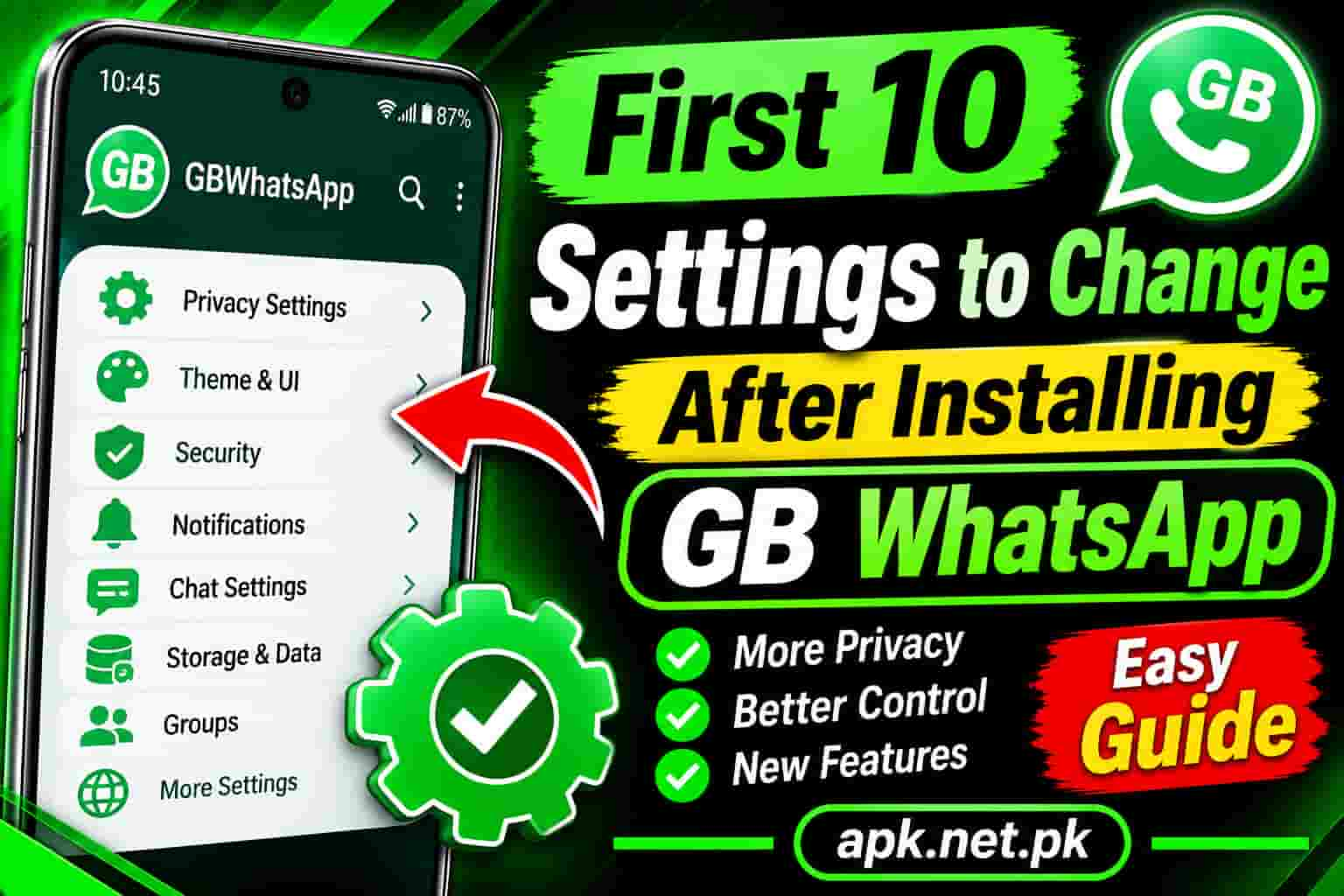
First 10 Settings to Change After Installing GB WhatsApp
You just installed GB WhatsApp, and the new menus feel exciting. Pause for ten minutes before you start chatting. The default setup leaves your chats open, delays your alerts, and gives you no safety net. This guide shows the 10 settings that matter most, where to find each one, and why each one earns its place.
Still need the file? Get it from our GB WhatsApp APK download page, install it, and then come back here.
Before you start: three quick checks
First, find the GB Settings menu. Open the app, tap the three dots at the top right, and choose GB Settings. Most privacy tools live there. Menu names change a little between versions, so look for the closest match if a label differs.
Second, check where your APK came from. Install only from a source you trust, and keep Google Play Protect switched on. Google explains how to use Google Play Protect on Android.
Third, read the risk honestly. These settings make GB WhatsApp easier to live with. They do not make it an official app.
The 10 settings at a glance
Short on time? Change these in order. The sections below explain each one.
- Lock the app with a PIN, pattern, or fingerprint.
- Turn on two step verification with a six digit PIN and a recovery email.
- Set up local backups and copy them off your phone.
- Tighten profile privacy to My contacts.
- Stop auto downloads on mobile data.
- Choose what to hide: blue ticks, typing, and recording.
- Enable Anti Delete for messages and statuses.
- Fix notifications and battery limits.
- Control updates yourself.
- Reduce ban risk with smart habits and a backup plan.
1. Lock the app with a PIN, pattern, or fingerprint
A phone passcode protects the phone. An app lock protects your chats when a friend borrows the phone. Set this one first because it takes thirty seconds.
- Open GB Settings, then Privacy and Security.
- Tap the lock option, often named Lock GBWhatsApp.
- Pick a pattern or PIN. Choose fingerprint if your version offers it.
- Add a recovery email if the app asks. Use an email you control.
You can also lock single chats. Long press a chat and look for the hide or lock option. Hidden chats stay out of your main list, and our guide to hidden chats in GB WhatsApp covers that feature in detail.
2. Turn on two step verification
This setting protects your number, not just the app. Without it, anyone who gets your SMS code can register your number on another phone. With it, they also need your six digit PIN.
- Open Settings inside GB WhatsApp, then Account.
- Tap Two step verification, then Enable.
- Create a six digit PIN you will remember.
- Add a recovery email so you can reset the PIN later.
WhatsApp will ask for this PIN from time to time. That is normal. It keeps working the same way as it does in the official app, because WhatsApp stores it on its servers.
3. Set up backups before you need them
Backups matter more here than in the official app. WhatsApp states that it cannot guarantee a chat history transfer from unofficial apps. So you must own your backup.
- Open Settings, then Chats, then Chat backup.
- Run a local backup now.
- Set a regular schedule if your version offers one.
- Copy the GB WhatsApp backup folder to your computer or cloud storage once a month.
Do not count on Google Drive to move chats between GB WhatsApp and the official app. Keep a local copy instead. Our step by step guide to GB WhatsApp backup and restore shows the full process, including how to restore after a reinstall.
4. Tighten who can see your profile
GB WhatsApp adds extra privacy tools. Still, start with the basics in the standard privacy screen. These options protect you from strangers and scammers.
- Open Settings, then Privacy.
- Set Last seen and online to My contacts.
- Set Profile photo and About to My contacts.
- Set Status to My contacts, or My contacts except, for a smaller circle.
- Set Groups to My contacts so strangers cannot add you.
- Open Calls and silence unknown callers.
These changes cut down spam, fake job offers, and prank calls. They cost you nothing, so make them on day one.
5. Stop automatic media downloads
Auto download looks convenient. In reality, it burns mobile data, fills your gallery with forwards, and saves unknown files straight to your phone. Switch it off for mobile data at least.
- Open Settings, then Storage and data.
- Under Media auto download, open When using mobile data and untick every item.
- Keep Photos on WiFi if you want, and leave Documents off.
- Open Settings, then Chats, and turn off Media visibility to keep chat media out of your gallery.
Want to keep a specific photo or video? Save it yourself on purpose. Our guide on how to save photos and videos in GB WhatsApp explains where the app stores them.
6. Choose what to hide: ticks, typing, and recording
This is the feature most people install GB WhatsApp for. Do not switch everything on at once. Pick only what you need, and you will keep your chats natural.
- Open GB Settings, then Privacy and Security.
- Find the hide options for blue ticks, second tick, typing, and recording status.
- Turn on only the ones you will really use.
- Use the per contact privacy option when you want different rules for one person.
What each hide option does
Hide blue ticks stops senders from seeing that you read their message. The official app has the same trade off: you also lose their blue ticks. Hide typing and hide recording stop the live status line. Hide view status lets you open a status without adding your name to the viewer list.
7. Enable Anti Delete for messages and statuses
When a sender deletes a message for everyone, Anti Delete keeps the text on your screen. You can also turn it on for statuses.
- Open GB Settings, then Privacy and Security.
- Turn on Anti Delete Messages.
- Turn on Anti Delete Status if you want it.
- Leave the app allowed in the background so it can receive messages on time.
Here is the catch. The app can only keep a message it has already received. If your phone kills the app or delays delivery, the delete can win. That is why setting 8 matters so much. If the feature misbehaves, see our fix for Anti Delete not working.
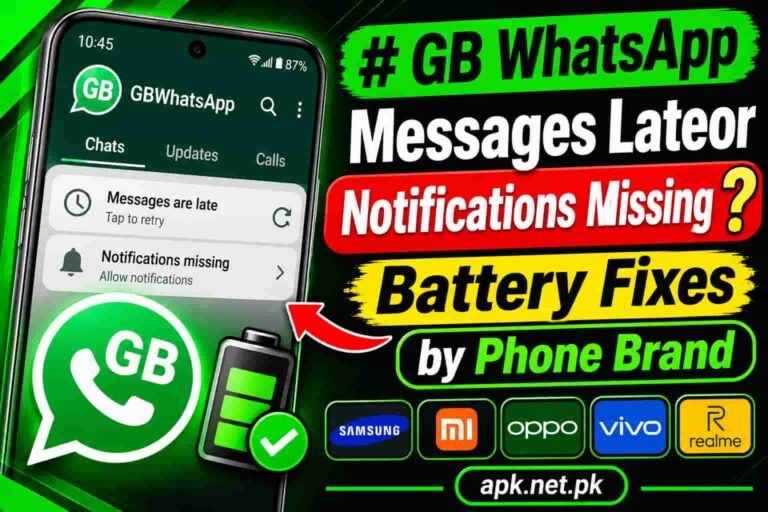
8. Fix notifications and battery limits
Late alerts are the top complaint about GB WhatsApp on phones with aggressive battery savers. Brands such as Xiaomi, Oppo, Vivo, Infinix, and Tecno often freeze background apps. You need to tell Android that GB WhatsApp is allowed to run.
- Open Android Settings, then Apps, then GBWhatsApp.
- Open Battery and choose Unrestricted or Do not optimize.
- Allow background data and, where it exists, Autostart.
- Open the recent apps screen and lock GB WhatsApp in memory.
- Inside the app, open Settings, then Notifications, and turn on high priority notifications.
Pick a different tone from your official WhatsApp so you can tell the two apart. If messages still arrive late, read our troubleshooting page on late notifications and messages in GB WhatsApp.
9. Control updates yourself
Updates fix bugs and keep the app working with WhatsApp servers. Old builds are the ones that stop logging in. Still, never tap a random update link that arrives in a chat. Fake update messages are a classic trick.
- Open GB Settings, then Updates.
- Check for a new version about once a week.
- Download updates only from a source you trust.
- Back up your chats before every update.
We track new releases on our GB WhatsApp update page, so you can compare versions before you install.
10. Reduce your ban risk and plan an exit
No setting removes the ban risk. WhatsApp tells users of unsupported apps that they may see a temporary ban message. If they do not switch to the official app, the ban can become permanent. So the smart move is to lower the odds and keep an exit plan.
- Prefer a secondary number if your main number matters to you.
- Avoid bulk messages, mass forwards, and auto replies to many contacts.
- Keep the app updated and your backups fresh.
- If you see a temporary ban message, back up, then switch to the official app as WhatsApp instructs.
Our GB WhatsApp anti ban guide explains the warning signs in more depth. For official guidance, check the WhatsApp Help Center.
Bonus: set up the look and feel
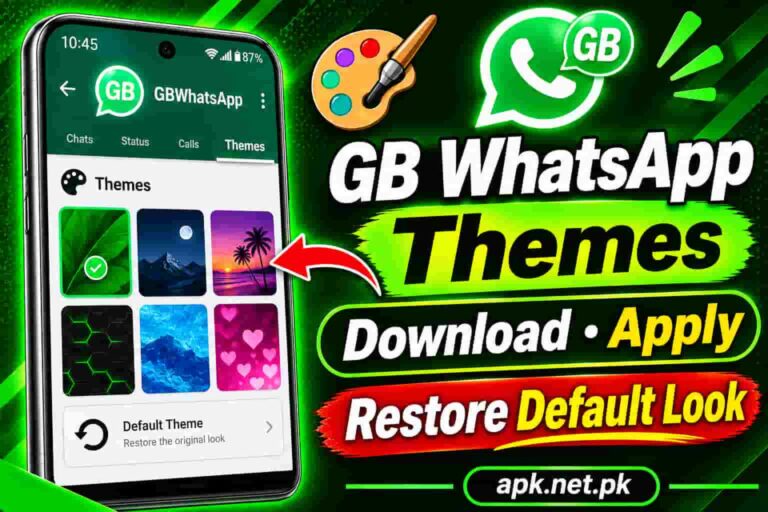
Themes are the fun part. Do them last, after your safety settings.
- Open GB Settings, then Themes, to browse and apply a theme.
- Choose a dark theme for night chats and a light theme for daytime.
- Adjust fonts and chat bubble styles in the Universal and Conversation Screen menus.
- Pick light themes. Heavy themes can slow older phones.
- Download themes only through the app or a source you trust.
Cheat sheet: all 10 settings in one table
| Setting | Where to find it | What it protects | Time |
|---|---|---|---|
| App lock | GB Settings, Privacy and Security | Chats if someone borrows your phone | 1 minute |
| Two step verification | Settings, Account | Your number from SIM and SMS code theft | 2 minutes |
| Backup | Settings, Chats, Chat backup | Your chat history | 2 minutes |
| Profile privacy | Settings, Privacy | Your photo, status, and groups from strangers | 2 minutes |
| Media downloads | Settings, Storage and data | Data balance and gallery clutter | 1 minute |
| Ticks and typing | GB Settings, Privacy and Security | Your reading and typing habits | 2 minutes |
| Anti Delete | GB Settings, Privacy and Security | Messages deleted after you received them | 1 minute |
| Notifications | Android Settings, Apps, GBWhatsApp | Timely alerts | 3 minutes |
| Updates | GB Settings, Updates | Login problems and old bugs | 1 minute |
| Ban protection | Habits plus backups | Your account and your chats | Ongoing |
Common mistakes to avoid
- Skipping the app lock. It is the fastest win on this list.
- Hiding everything at once. You end up ignoring your own chats.
- Trusting update links in chats. Always update from a source you trust.
- Using your only number. A ban would hurt far more.
- Forgetting backups. A lost phone or a ban can wipe your history.
- Granting every permission. Deny contacts, location, or microphone access if a feature does not need it.
Frequently asked questions
What should I change first after installing GB WhatsApp?
Set the app lock first, then turn on two step verification. After that, run a local backup. These three steps protect your chats, your number, and your history in about five minutes.
Where is the GB Settings menu?
Open GB WhatsApp, tap the three dots at the top right, and choose GB Settings. Privacy and Security, Universal, Themes, and Updates sit inside it. Labels can change slightly between versions.
Is GB WhatsApp safe after I change these settings?
These settings reduce some risks, but they do not make the app official. WhatsApp says it cannot validate the security of unsupported apps. Install only from a trusted source and keep Google Play Protect on.
Can WhatsApp still ban me with these settings on?
Yes. No setting guarantees safety. WhatsApp can issue a temporary ban to users of unsupported apps, so keep backups and avoid bulk messaging.
How do I hide blue ticks and typing in GB WhatsApp?
Open GB Settings, then Privacy and Security, and switch on the hide options for blue ticks, typing, and recording. Use them only when needed. Hiding blue ticks also hides other people’s blue ticks from you.
How do I read deleted messages in GB WhatsApp?
Turn on Anti Delete Messages in Privacy and Security. The app keeps messages it already received. It cannot recover a message that never reached your phone.
Why do GB WhatsApp notifications arrive late?
Battery savers usually freeze the app in the background. Set the battery option to Unrestricted, allow background data, and lock the app in recent apps. Then turn on high priority notifications inside the app.
Can I use GB WhatsApp and the official WhatsApp together?
Yes, but you need two different phone numbers. One number stays active in one app at a time on a phone. Choose different notification tones so you can tell the apps apart.
How do I back up GB WhatsApp chats?
Open Settings, then Chats, then Chat backup, and run a local backup. Copy the backup folder to your computer or cloud storage regularly. Do not rely on Google Drive to move chats between apps.
How often should I update GB WhatsApp?
Check about once a week and update when a trusted source publishes a new version. Back up first. Never install an update from a link that arrives in a chat.

5 Comments